Packet capture service
In this topic, you will learn how to use the Portnox™ Cloud packet capture service to troubleshoot network problems.
Sometimes AAA logs, alerts, and other information are not enough to troubleshoot network issues with Portnox Cloud RADIUS servers. In these cases, you can use the packet capture service. This service lets you capture the packets sent from your NAS devices to our Cloud RADIUS servers. You can then analyze the captured file yourself or send it to Portnox support for help with troubleshooting.
-
In the Cloud portal top menu, click on the Troubleshooting option.

-
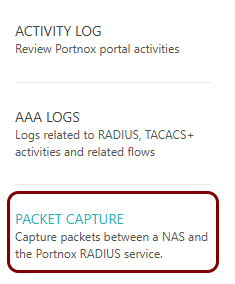
In the Portnox Cloud left-hand menu, click on the PACKET CAPTURE option.
-
Click on the Start packet capture button.
-
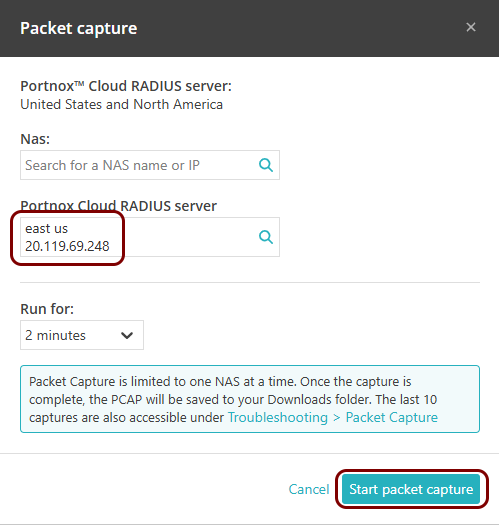
In the Packet capture window, select the Portnox Cloud RADIUS server,
optionally select the NAS device, set the Run for time for the packet
capture, and then click on the Start packet capture button.
 Note:If your packet capture turns out empty, we recommend leaving the NAS field empty and trying again. If this does not help, change the Portnox Cloud RADIUS server, perhaps your packets are going to the other Cloud RADIUS server. Alternatively, reconfigure your NAS device temporarily to only support one Portnox Cloud RADIUS server.
 -
When the packet capture is complete and Portnox Cloud finishes processing it, you can download it by clicking on the
Download file (.pcap) link.

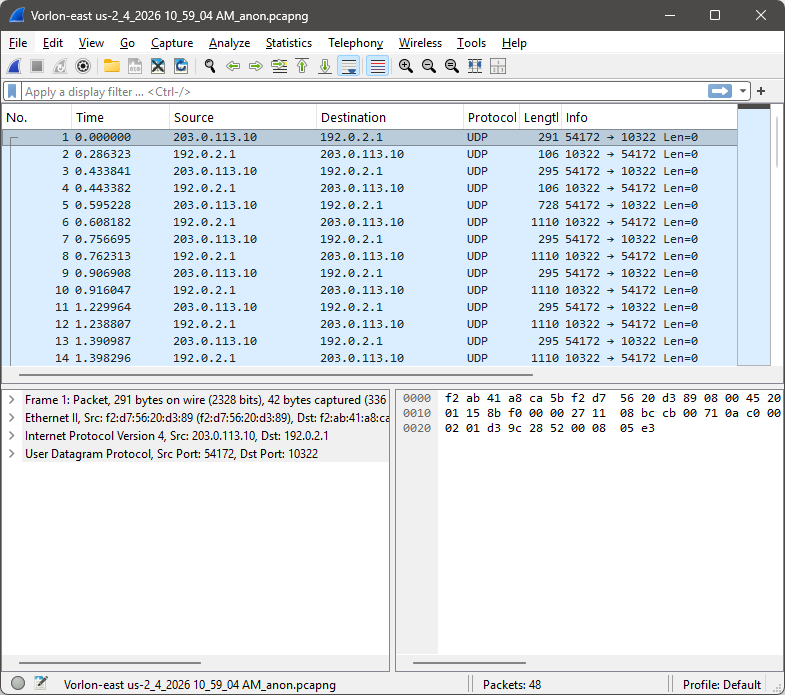
You can analyze the packet capture file yourself using, for example, Wireshark software, or you can send it to the Portnox Cloud support team for help with troubleshooting.