
VPN – Cisco Meraki Security Appliance
In this topic, you will learn how to configure the Cisco Meraki Security Appliance to work together with Portnox™ Cloud and 802.1X RADIUS authentication for VPN connections.
Important:
This guide gives general instructions for integrating Portnox Cloud with
specific third-party devices. We try to provide useful examples for common models, but settings can differ between
manufacturers, models, and environments. Because of this, we cannot guarantee these steps will work in every case.
For questions or problems with RADIUS setup – which is an industry standard and not specific to Portnox – or with
device-specific settings and troubleshooting, we recommend checking the device manufacturer’s documentation and contacting
their support team. Portnox Support can help when possible, but detailed setup of third-party devices is usually best
handled by the manufacturer. We also recommend updating your NAS device firmware to the latest version, as old
firmware can cause issues.
Important:
All values in this configuration are examples. Make sure to adjust the
configuration to your individual profile names, RADIUS server addresses, ports, and keys by replacing the values that are
presented as underlined italics.
Warning:
This topic contains documentation prepared by our support agents more than 12 months ago. It
may not cover the newest models or the newest interfaces of NAS devices. We’re working on bringing you updated documentation
for NAS devices in the near future. However, the methods of setting up third-party devices may still change when the
manufacturers update their firmware or release new models.
In the Meraki web interface, navigate to and perform the following:
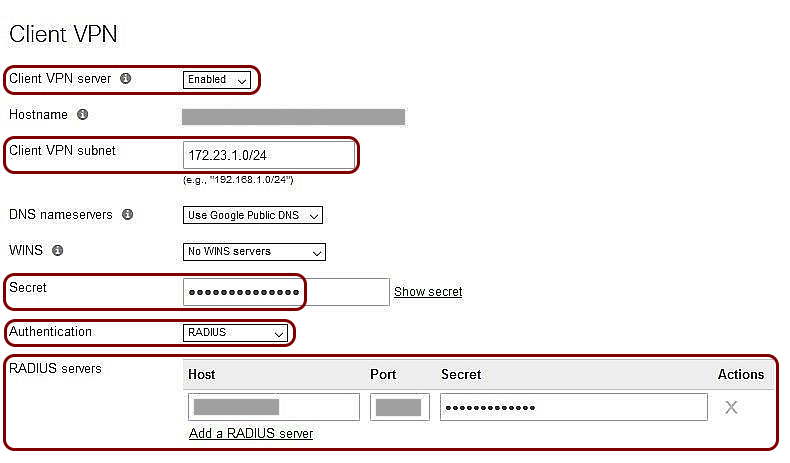
- Set Client VPN server to Enabled.
- Specify the Client VPN subnet.
- Enter a Secret to be used in the VPN client.
- In Authentication, select RADIUS.
- In RADIUS servers, click on Add a RADIUS Server and enter your Cloud RADIUS details for RADIUS authentication (not accounting).
- Optional: If necessary, click on Add a RADIUS server and repeat the above step for the second Cloud RADIUS server and/or the local RADIUS server.
- Click on Save Changes.