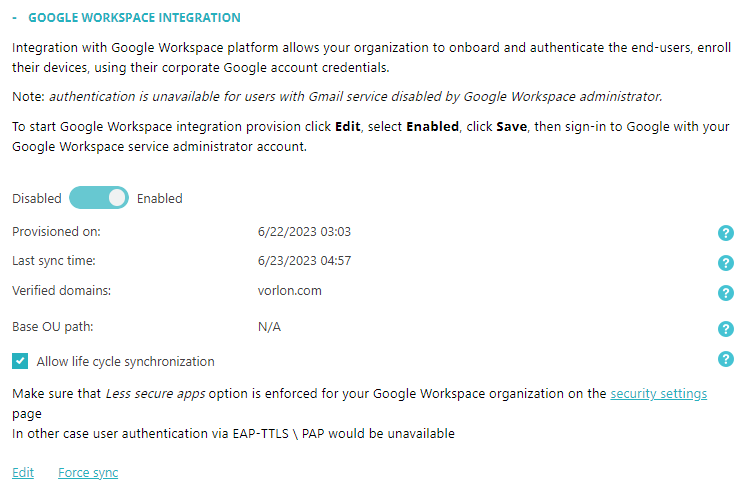
Integrate with Google Workspace
In this topic, you will learn how to integrate Portnox™ Cloud with Google Workspace.
Important:
In January 2025, Google removed the Less Secure Apps option for
all Google Workspace accounts, which means you cannot use credential-based authentication with Google Workspace unless every
Google Workspace user creates an app password, which is not scalable. We are currently working on a workaround.
-
In the Cloud portal top menu, click on the Settings option.

-
In the Cloud portal left-hand side menu, click on the option.

-
Enable Google Workspace integration.
-
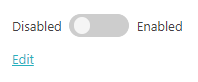
Under the Google Workspace Integration heading and description, click on the
Edit link.
-
Click on the Disabled/Enabled switch to put it in the Enabled
position.
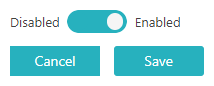
You will be redirected to the Sign in with Google screen.
Important:The Sign in with Google screen is managed by Google and may differ in appearance and functionality from what is described in this manual. Consult the Google manuals for more details, if necessary. -
Under the Google Workspace Integration heading and description, click on the
Edit link.
-
Configure Google Workspace.
-
On the Sign in with Google screen, select your Google account to sign in to Google
Workspace.
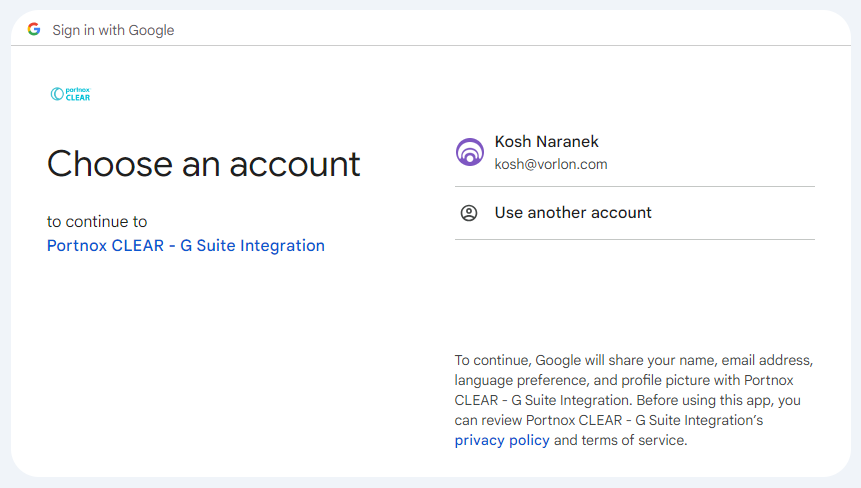
Google will open the next page of the Sign in with Google screen.
-
On the next page, click on the Select all checkbox to grant Portnox Cloud access to the
Google user and group repository.
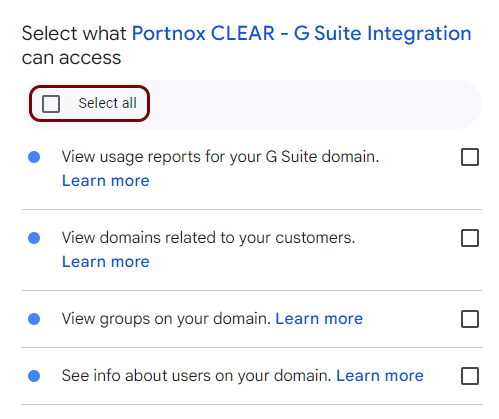 Note:All the displayed access privileges to Google Workspace must be selected for Portnox Cloud to work correctly.Important:If the selected Google Workspace account does not have administrative privileges, you may be asked to contact your administrator.
 -
Scroll the Sign in with Google page to the bottom and click on the
Continue button.
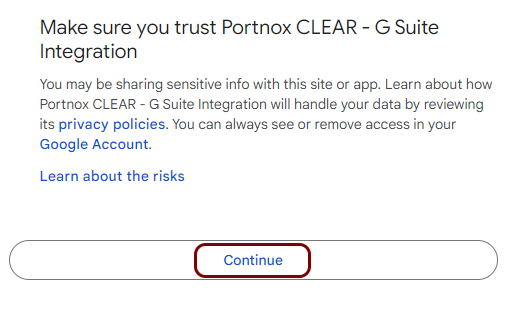
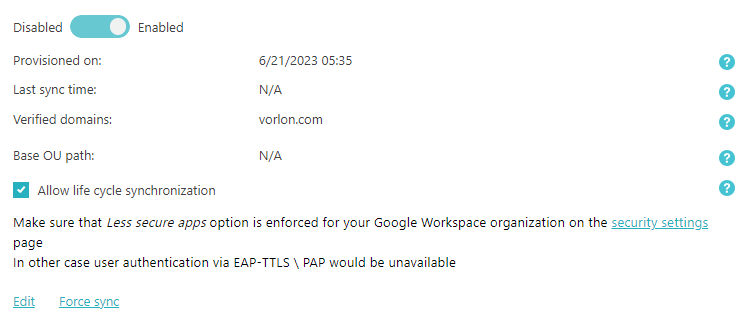
You will come back to Portnox Cloud.
Your Google Workspace integration is now active.
-
On the Sign in with Google screen, select your Google account to sign in to Google
Workspace.
-
Under the GOOGLE WORKSPACE INTEGRATION section, click on the Force sync
link.
Portnox Cloud will start synchronizing immediately in the background with your Google Workspace. If you do not click Force sync, the synchronization process will be started automatically later.
 Note:If your Google Workspace directory is very large, this process can take up to approximately an hour.
Result: You can authenticate devices on your network using Google Workspace.