
How does Portnox Cloud handle certificate revocation?
In this topic, you will learn how Portnox Cloud handles certificate revocation for user and device certificates.
Certificate revocation using CRL or OCSP
In this section, you will learn how to configure Portnox Cloud to publish certificate revocation information using CRL or OCSP, both for certificates generated by Portnox Cloud and for certificates issued by your own certificate authority (CA).
Portnox Cloud supports two options for publishing revocation information for certificates:
-
If you use the Portnox certificate authority (default setting) to generate user/device certificates, you can include OCSP (online certificate status protocol) information with the certificate. This information is included in the Certificate Authority Information Access extension.
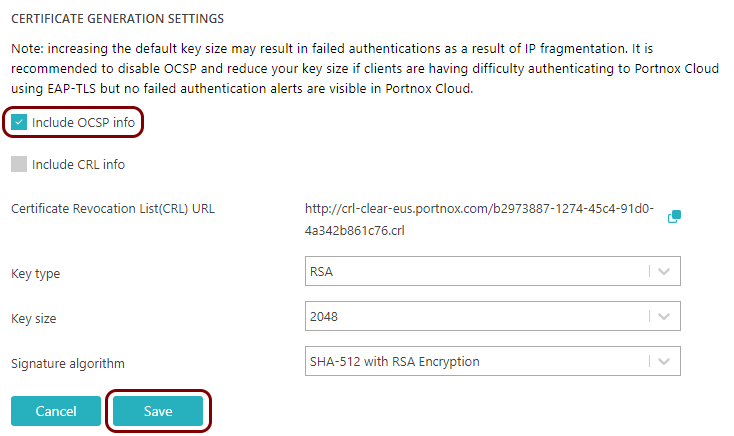
To include OCSP information with Portnox Cloud certificates, go to the section, click on the Edit link, activate the Include OCSP info checkbox, and then click on the Save button.
-
If you use the Portnox certificate authority (default setting) to generate user/device certificates, you can use your tenant’s CRL (certificate revocation list) hosted by Portnox.
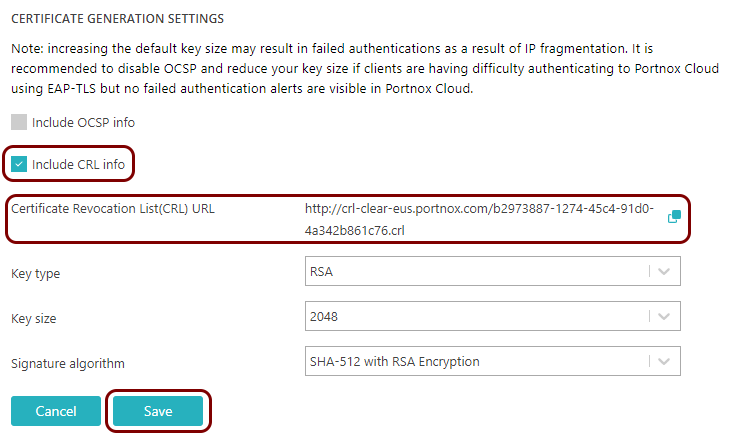
To include CRL information with Portnox Cloud certificates, go to the section, click on the Edit link, activate the Include CRL info checkbox, and then click on the Save button.
The URL of your CRL is displayed in the Certificate Revocation List (CRL) URL field.
-
If you use your own CA to generate certificates, and you publish a CRL on your own web server, you can include the URL of that CRL when adding your own CA certificate.
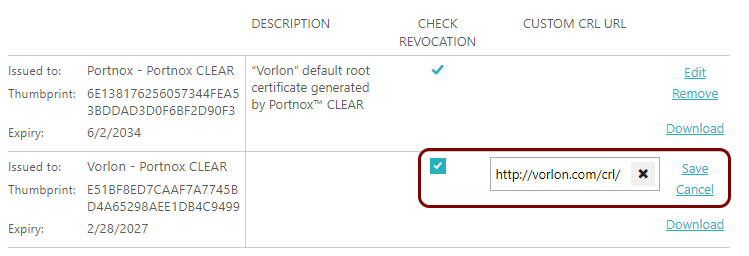
Follow the procedure described in the following topic: Onboard devices using your own root certificate authority. After uploading your own certificate, click on the Edit link, activate the checkbox in the CHECK REVOCATION column, and enter your CRL URL in the CUSTOM CRL URL column. Then, click on the Save link.
 Note:Portnox Cloud caches the CRL for 3 hours (it does not download the CRL for every authentication request, and authentication waits while the cache refreshes).Important:If Portnox Cloud cannot reach the CRL, authentication fails for all certificates issued by that CA. Portnox Cloud does not check CRL availability and does not send alerts when the CRL is unreachable or CRL validation fails.Note:Disable this option if you use the tenant root CA from Portnox Cloud. Portnox Cloud uses its own internal mechanism to check certificate validity.
Revoking a certificate in Portnox Cloud
In this section, you will learn how to revoke a certificate that was generated by Portnox Cloud.
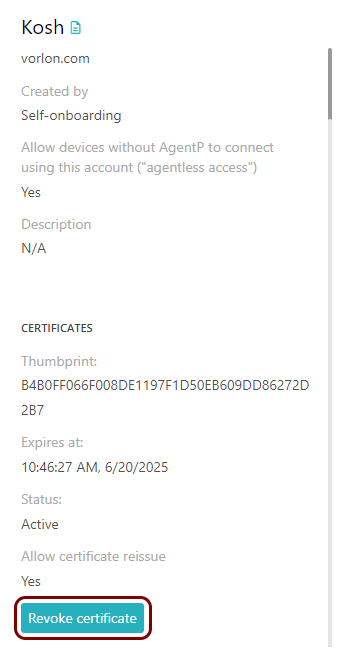
To revoke a certificate generated by Portnox Cloud, go to the Devices pane, select an account, and scroll down the right-hand side pane. If the account has a certificate that can be revoked, there is a Revoke certificate button.
Using CRL-based revocation with intermediate CAs
In this section, you will learn how to configure CRL-based revocation correctly when your certificates are issued by an intermediate CA.
When you use your own CA and CRL, Portnox Cloud checks the certificate of the CA that issued the client certificate. If that CA is an intermediate CA, Portnox Cloud also needs access to the parent CA certificates in the chain. If those parent certificates are uploaded as separate entries in the Trusted Root Certificates table, the CRL validation process cannot use them, and CRL validation fails.
To make CRL validation work, upload the issuing intermediate CA certificate together with its full certificate chain. The chain must include the issuing intermediate CA certificate and all parent CA certificates up to and including the root CA. For example, if a client certificate was issued by an intermediate CA, upload a chain that contains both the intermediate CA certificate and the root CA certificate. If there are multiple intermediate CAs, include all of their certificates and the root CA certificate in the same chain file.
Use a certificate format that supports certificate chains: PKCS #12 (.pfx) or PKCS #7 (.p7b). Portnox Cloud does not currently support concatenated PEM certificates.
If you only have separate certificate files, you can use OpenSSL to create a PKCS #7 chain file:
openssl crl2pkcs7 -nocrl -certfile intermediate.crt -certfile root.crt -out chain.p7bSCEP certificate revocation
In this section, you will learn how revocation works for certificates requested through SCEP.
Revocation, invalidation, or removal of SCEP certificates is fully handled by the endpoint management software that requested the certificate from Portnox Cloud in the first place.
The SCEP protocol does not specify a method to request certificate revocation. Therefore, to invalidate certificates requested originally through SCEP, the endpoint management software must remove certificates that are installed on devices. For example, the Intune documentation states that SCEP certificates are removed but not revoked when using a third-party certification authority (such as Portnox Cloud).