
How to register a Portnox Support Center account
In this topic, you will learn how to register a Portnox Support Center account.
Prerequisites:
-
You must first register in Portnox Cloud (create a tenant), see: Sign up for Portnox Cloud.
-
When registering a Portnox Support Center account, you must use the same domain as you used to register in Portnox Cloud.
-
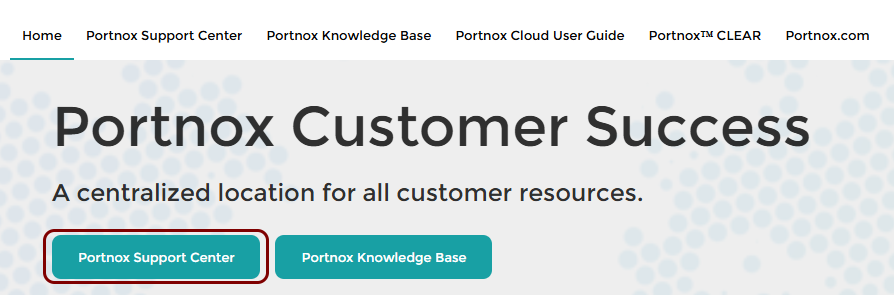
Click on the Portnox Support Center button.
-
Click on the Not a member? link.
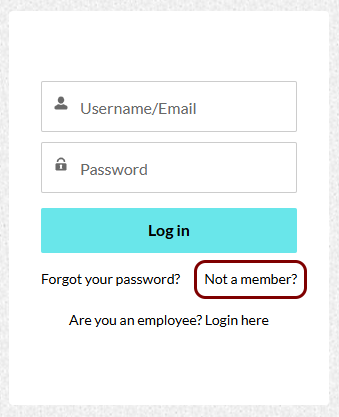 Note:If you’re logging in for the first time since 2024, you tried using your credentials, and they don’t work, it’s possible that you used the legacy Portnox Support Center system. Support accounts were not migrated from the old system, which was retired in the first half of 2024. If so, you need to register in the current system.
 -
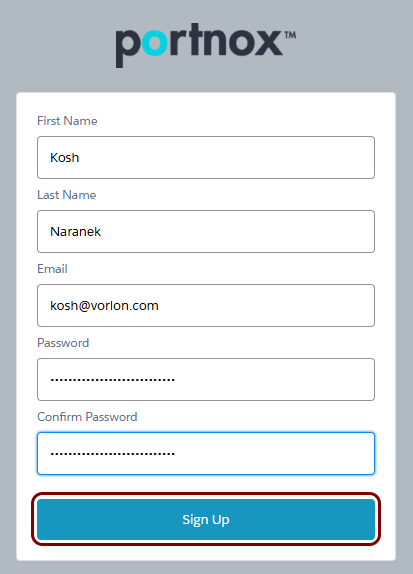
Fill in the registration form:
-
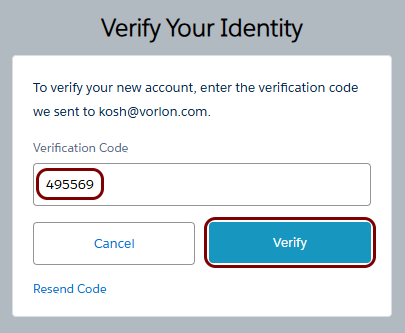
Verify your account:
-
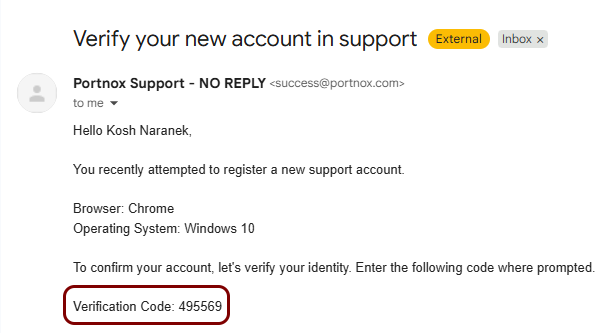
Check your email.
You will receive a verification code. Check your spam/junk folder if after a few minutes you still haven’t received the verification code.
-
Enter the verification code in the Verification Code field in the Verify Your
Identity window, and then click on the Verify button.
-
Check your email.
Important:
To log in to the Portnox Support Center in the future, you must use the username that you received via
email. Your username is not the same as your email address. For example, if your email address is
kosh@vorlon.com, then your username is kosh@vorlon.com.portnox. You must
also use this full username when requesting a password reset, otherwise you will not receive a password reset link.