
Portnox Dot1X Check
In this topic, you will learn about Portnox Dot1X Check, a free desktop tool that tests RADIUS authentication by sending synthetic requests to a RADIUS server.
Portnox Dot1X Check is a free tool created by Portnox engineers to complement Portnox Cloud. It is not an integral part of the Portnox Cloud product.
As such, it is subject to the following limitations:
- It is provided free of charge and on an “as-is” basis.
- It is not supported by Portnox Technical Support.
- It is not covered by any Portnox Cloud service-level agreement (SLA), support contract, or product warranty.
- Portnox does not guarantee its fitness for a particular purpose, correctness, or continued maintenance.
- Use of this tool is at your own risk.
Portnox Dot1X Check is available for Windows (x64 and ARM) and macOS (Intel and Apple Silicon). To get it, fill out the form on the Dot1XCheck download page.
What is Portnox Dot1X Check?
In this section, you will learn what Portnox Dot1X Check does.
Portnox Dot1X Check acts as an 802.1X supplicant connected to a network access server (NAS). It sends RADIUS requests to a RADIUS server and shows the result. You can use it to test the connection to your Portnox Cloud RADIUS server and to check authentication without a real switch, access point, or VPN server.
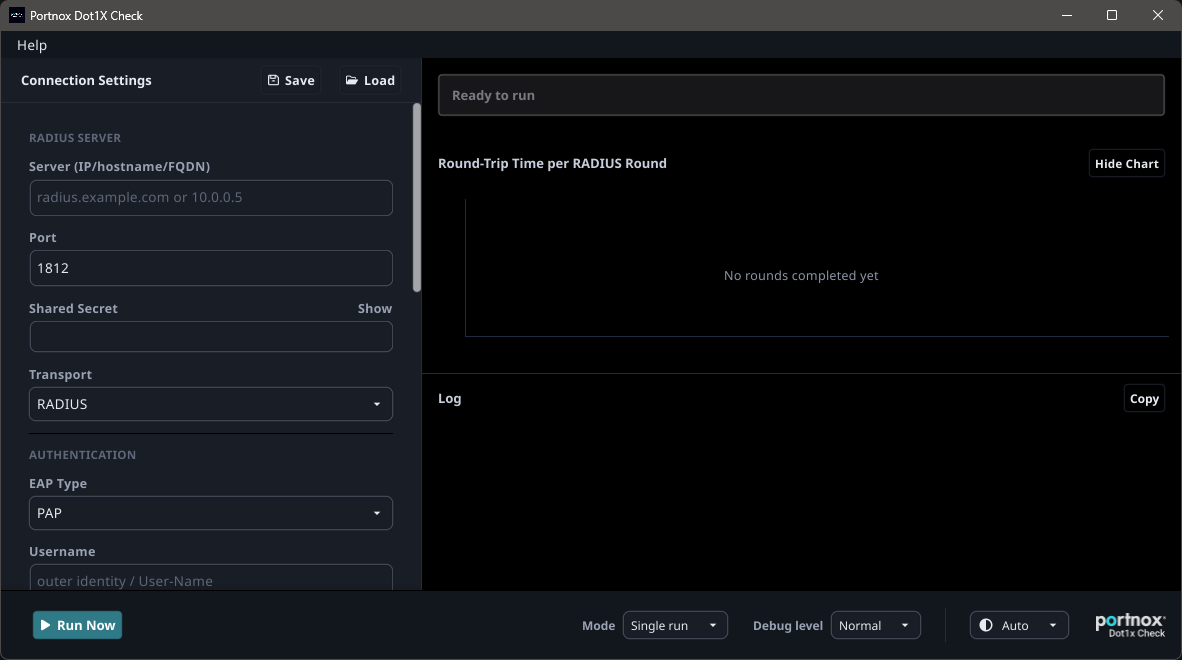
Portnox Dot1X Check can do the following:
-
Test these authentication methods: PAP, PEAP-MSCHAPv2, EAP-TTLS, EAP-TLS, EAP-TEAP, and MAC address bypass (MAB).
-
Use RADIUS or RadSec (RADIUS over TLS) as the transport.
-
Emulate wired, wireless, and VPN connections.
-
Show the round-trip time of each RADIUS round in a chart.
-
Log each RADIUS round, with packet-level detail at higher debug levels.
-
Run a single test or run continuously to monitor the RADIUS server over time.
-
Save and load connection settings as profile files.
Portnox Dot1X Check replaces older tools such as NTRadPing, which support only PAP over RADIUS and run only on Windows.
The examples in this topic use the following values:
-
Portnox Cloud RADIUS server:
20.119.69.248(FQDN:clear-rad-niqthmnz.portnox.com), port10322, shared secretrTHO9HEo9BcqfC9Yg0hHFelK6o0tH8N1. -
User:
kosh@vorlon.com.
Replace them with the values of your own tenant. You can find the RADIUS server details in Portnox Cloud: . For RadSec FQDNs, see the following topic: What are the fully qualified domain names (FQDNs) of Cloud RADIUS servers.
Testing authentication
In this section, you will learn how to test each authentication method over RADIUS or RadSec.
Monitoring and troubleshooting
In this section, you will learn about the options that help you monitor the RADIUS server and analyze failed tests.
-
To monitor the RADIUS server over time, select Continuous in the Mode list. The tool repeats the test and adds each result to the chart.
-
To log each RADIUS packet in detail, select a higher level in the Debug level list.
-
To decrypt captured traffic, set a file in the TLS Key Log File field in the Timing & Diagnostics section. Packet analyzers such as Wireshark use the saved TLS session keys.
-
To copy the log, click on the Copy button next to the Log section.
-
To reuse settings, click on the Save button to save a profile file, and on the Load button to load it.
Profile files
In this section, you will learn about the structure of Portnox Dot1X Check profile files and where to get example profiles.
A profile file is a JSON file that stores all connection settings. You create it with the Save button and open it with the Load button. The file contains three top-level keys:
version: the version of the profile format, currently1settings: the connection settings, described in the table below-
protected: encrypted data written by Portnox Dot1X Check when you save a profile. Don’t edit this field.
The settings key contains the following parameters:
| Parameter | Description | Example value |
|---|---|---|
Server |
The IP address or FQDN of the RADIUS server (Server (IP/hostname/FQDN)). Use the FQDN for RadSec. | 20.119.69.248 or clear-rad-niqthmnz.portnox.com |
Port |
The authentication port of the RADIUS server (Port). | 10322 |
Secret |
The shared secret (Shared Secret). For RadSec, the shared secret is always
radsec. |
rTHO9HEo9BcqfC9Yg0hHFelK6o0tH8N1 or radsec |
Username |
The user name (Username). Not used for MAB. | kosh@vorlon.com |
Password |
The user password (Password). Used for PAP, PEAP-MSCHAPv2, and EAP-TTLS. | Vorlon2026! |
AuthType |
The authentication method (EAP Type). | pap, peap-mschapv2, eap-tls, teap, or
mab |
Transport |
The transport protocol (Transport). | radius or radsec |
RadSecClientCertFile |
The client certificate for RadSec mutual TLS (Client Certificate (optional)). | /Users/kosh/Downloads/radsec-client.p12 |
RadSecClientKeyFile |
The private key of the RadSec client certificate, if it is a PEM file (Client Key (PEM only)). | /Users/kosh/Downloads/radsec-client.key |
RadSecClientCertPassword |
The password of the RadSec client certificate (Client Cert Password). | ClientCert2026! |
RadSecRootCACertFile |
The root CA certificate used to validate the RadSec server (RADSEC Root CA). | /Users/kosh/Downloads/rootCertificate.cer |
RadSecSkipServerCertCheck |
Disables RadSec server certificate validation (Skip RADSEC server certificate validation (lab use only)). | false |
TeapOuterIdentity |
The outer identity sent in EAP-TEAP. | anonymous@vorlon.com |
PrimaryMethod |
The primary inner method. | tls |
PrimaryIdentity |
The identity for the primary inner method (Identity). If empty, the tool uses the user name. | kosh@vorlon.com |
PrimaryCertFile |
The user certificate (Certificate Path). Used for EAP-TLS and EAP-TEAP. | /Users/kosh/Downloads/kosh@vorlon.com.p12 |
PrimaryKeyFile |
The private key of the user certificate, if it is a PEM file (Key (PEM only)). | /Users/kosh/Downloads/kosh@vorlon.com.key |
PrimaryCertPassword |
The password of the user certificate (Cert Password (.p12/.pfx)). | UserCert2026! |
SecondaryEnabled |
Enables a secondary inner method. Used for EAP-TEAP to authenticate the machine as well as the user. | true (EAP-TEAP) or false |
SecondaryMethod |
The secondary inner method. | tls |
SecondaryIdentity |
The identity for the secondary inner method. | teap@vorlon.com |
SecondaryCertFile |
The machine certificate for the secondary inner method. | /Users/kosh/Downloads/teap@vorlon.com.p12 |
SecondaryKeyFile |
The private key of the machine certificate, if it is a PEM file. | /Users/kosh/Downloads/teap@vorlon.com.key |
SecondaryCertPassword |
The password of the machine certificate. | MachineCert2026! |
EapServerName |
The expected name in the RADIUS server certificate (Expected EAP Server Name). | clear-rad.portnox.com |
RootCACertFile |
The root CA certificate used to validate the RADIUS server during EAP (Server Root CA). | /Users/kosh/Downloads/rootCertificate.cer |
SkipServerCertCheck |
Disables RADIUS server certificate validation during EAP (Skip server certificate validation (lab use only)). | false |
NasIdentifier |
The name of the emulated NAS (NAS-Identifier). | Portnox-Dot1x-Check |
NasPortID |
The switch port or SSID of the emulated connection (NAS-Port-Id). | GigabitEthernet1/0/9 |
NasPortType |
The connection type (NAS-Port-Type), for example, 15 for Ethernet
or 19 for Wi-Fi. |
15 |
CallingStation |
The MAC address of the emulated device (Calling-Station-Id (MAC)). MAB uses it as the identity. | 01:23:45:67:89:01 |
TimeoutSeconds |
The time to wait for each RADIUS response, in seconds (Timeout (seconds)). | 5 |
MaxRounds |
The maximum number of RADIUS rounds in one test (Max Rounds). | 60 |
Debug |
Enables detailed logging. | true or false |
DebugHex |
Adds hexadecimal packet dumps to the log. | true or false |
TLSKeyLogFile |
The file for TLS session keys (TLS Key Log File). | /Users/kosh/Downloads/tls-keys.log |
Example profiles for every authentication method, over both RADIUS and RadSec, are available in the following file: dot1xcheck_profiles.zip. To use a profile, unzip the file to a local directory, click on the Load button, and select a profile, for example, EAP-TLS - RadSec.json. The profiles contain example values only. Before you run a test, replace the server, port, shared secret, user names, passwords, certificate paths, and MAC address with the values from your own environment. Otherwise, the test fails.