How to re-enable fast reconnect (EAP session resumption) on client devices
In this topic, you will learn how to configure Wi-Fi network adapters on client devices to support the fast reconnect function of Portnox Cloud RADIUS servers – also known as EAP session resumption – if you previously disabled it or want to verify that it is enabled.
Important:
Fast reconnect is enabled by default on Windows for PEAP connections and does not require configuration
on any other operating system or EAP method. You only need to complete this procedure if you are using PEAP on Windows and
have previously disabled fast reconnect, either manually in the network adapter settings or via an Intune profile. If you
are using EAP-TLS or EAP-TTLS, no action is required as session resumption is handled automatically by the operating system.
Fast reconnect for Windows with Intune
In this section, you will learn how to turn on fast reconnect in a Wi-Fi profile in Intune for a Windows device using the Intune Settings Catalog.
-
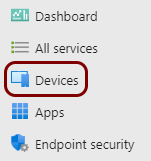
In the left-hand menu, select the Devices option.
-
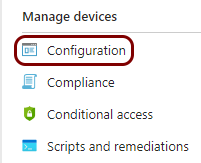
In the left-hand menu of the Devices pane, select the Configuration
option.
-
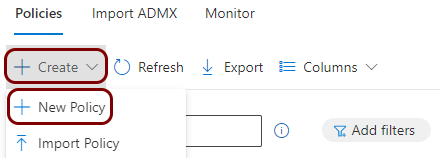
In the Devices | Configuration pane, in the Policies tab, click on the
Create button and select the New Policy option.
-
In the Create a profile pane:
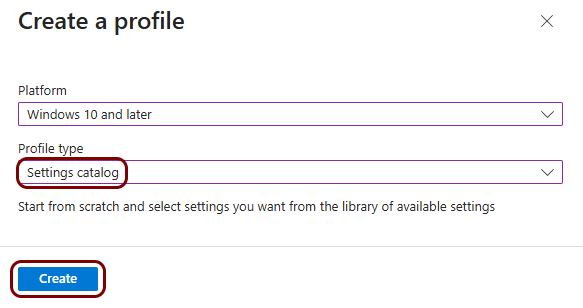
- In the Platform field, select Windows 10 and later.
- In the Profile type field, select Settings catalog
- Click on the Create button.
-
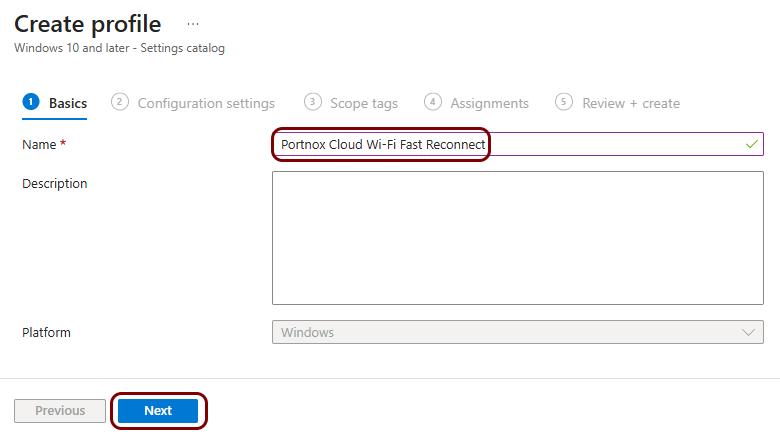
In the Basics step of the Create profile wizard, in the
Name field, type a name for this profile, optionally fill in the
Description field, and click on the Next button.
-
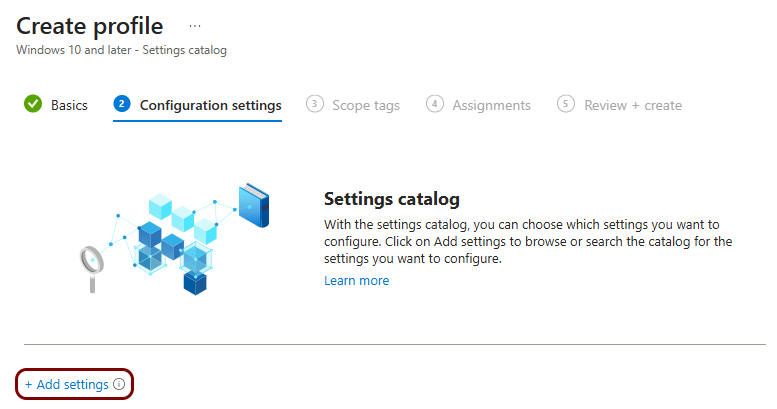
In the Configuration settings step of the Create profile wizard, click
on the Add settings link.
-
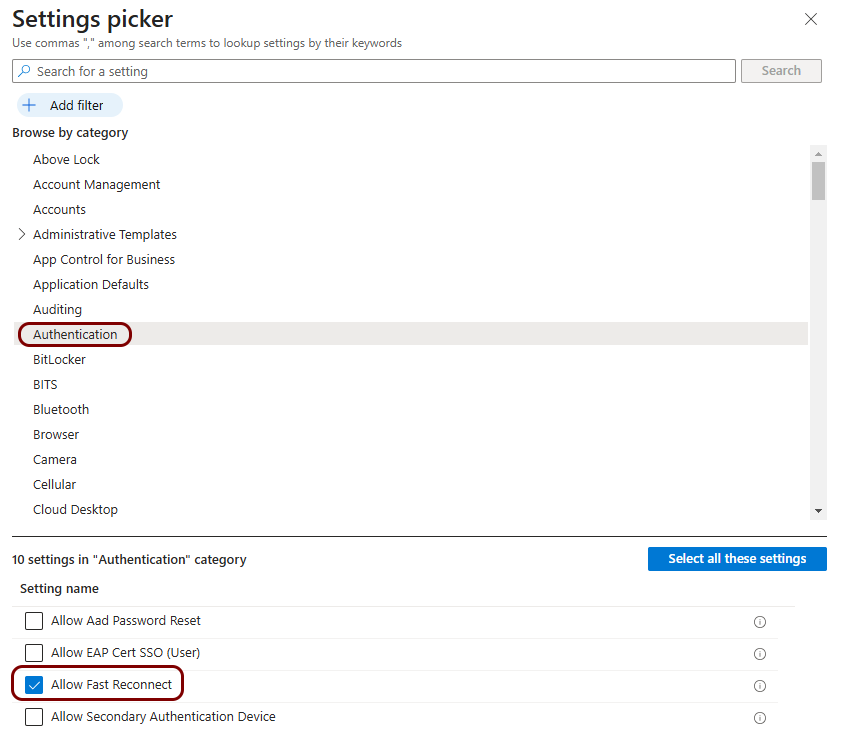
In the Settings picker pane, click on the Authentication entry, and
then activate the Allow Fast Reconnect checkbox.
-
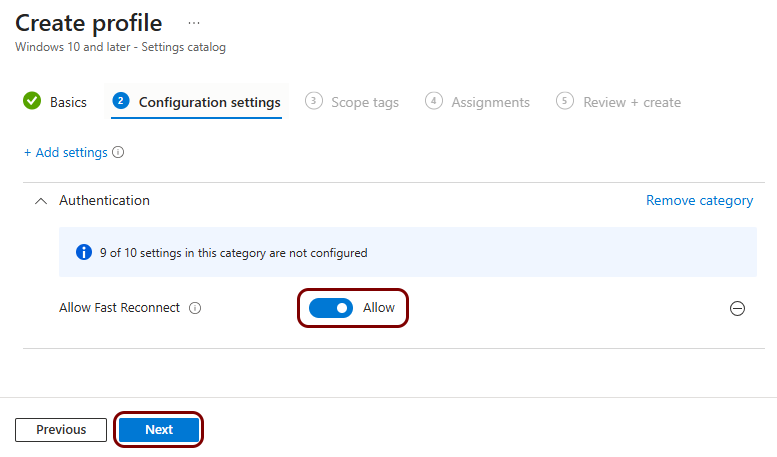
Back in the Configuration settings step of the Create profile wizard,
make sure that the Allow Fast Reconnect switch is in the Allow
position, and then click on the Next button.
Fast reconnect for Windows PEAP (manual)
In this section, you will learn how to manually re-enable fast reconnect for an existing Windows Wi-Fi SSID configuration with PEAP.
-
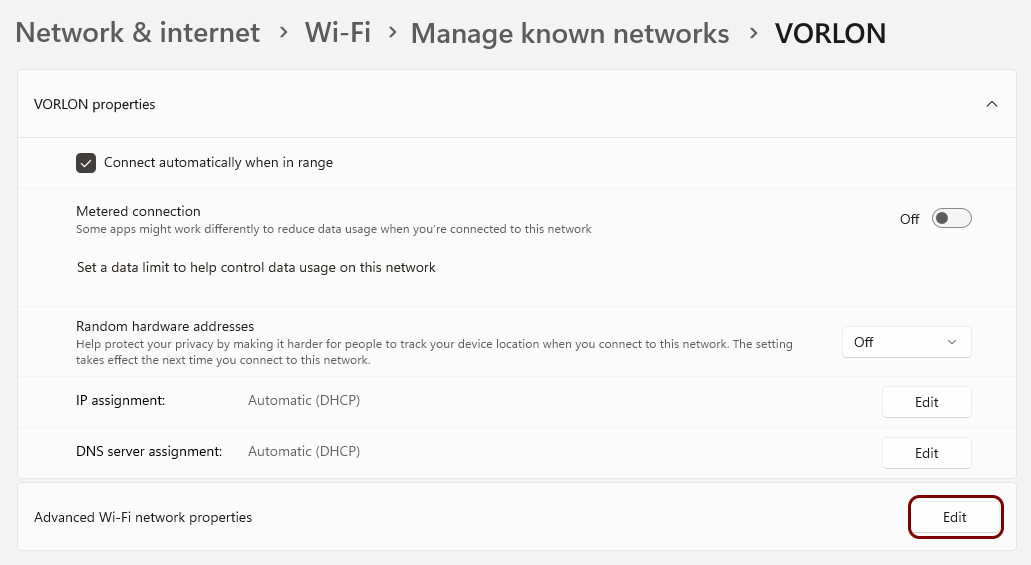
In Windows Settings, go to: and click on the Edit button.
-
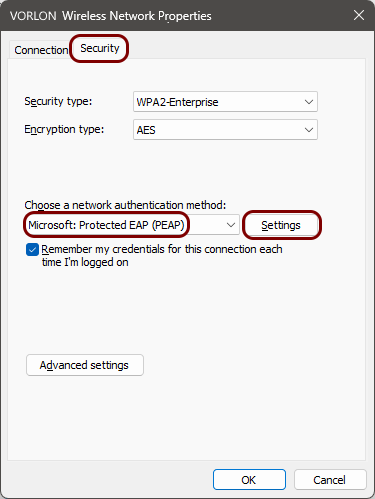
In the Wireless Network Properties window, click on the Security tab.
In the Choose a network authentication method drop-down list, check that the
Microsoft: Protected EAP (PEAP) option is selected. If it is not selected, you do not
need to continue – stop this procedure. If it is selected, click on the Settings
button.
-
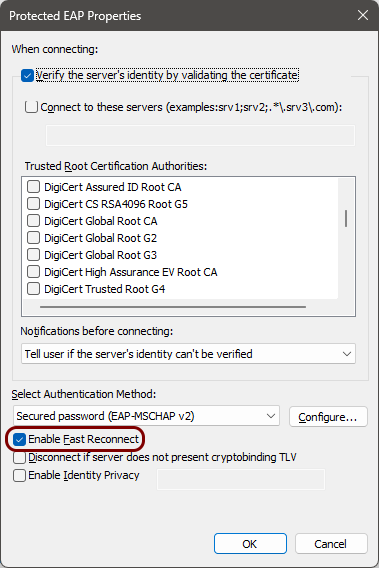
In the Protected EAP Properties window, activate the Enable Fast
Reconnect checkbox.