
Configure RADIUS load balancing with local RADIUS and Portnox Cloud
Use this task to configure local RADIUS and Portnox Cloud groups for RADIUS load balancing, using Citrix NetScaler as an example.
If you want to load-balance multiple local RADIUS instances, your load balancer must be able to send RADIUS authentication requests to your local RADIUS servers. A common example of this setup uses Citrix NetScaler.
In this configuration, the load balancer checks the availability of local RADIUS instances by sending authentication requests using dedicated test accounts. These requests help the load balancer decide which RADIUS server is working correctly.
-
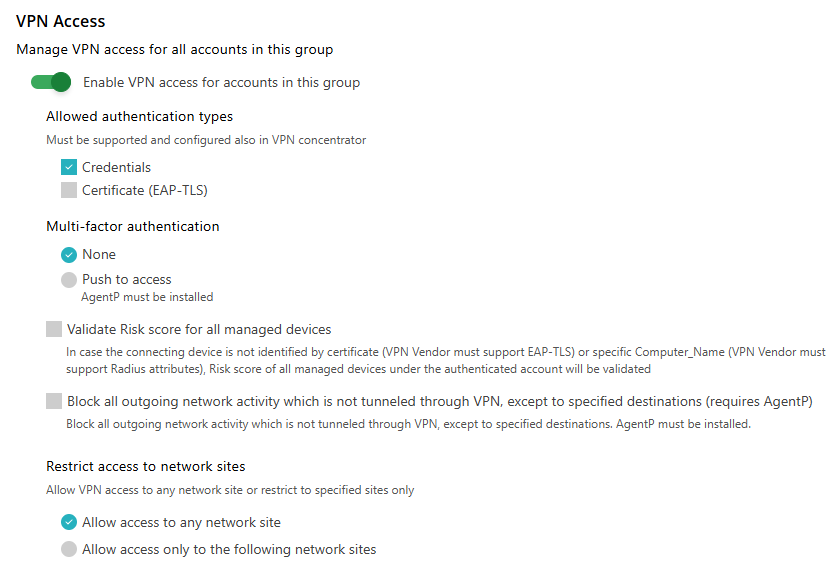
Configure the Portnox Cloud group used for load balancing to allow VPN access.
This is required because the test authentication requests sent directly to the RADIUS server are treated as VPN authorization requests. If VPN access is not allowed, you may see alerts such as VPN access not allowed by group settings.
For example:
After completing these steps, your load balancer can correctly determine which local RADIUS instances are available and distribute authentication requests accordingly.