
Wi-Fi employee access for Cisco Meraki
In this topic, you will learn how to configure Cisco Meraki access points to work together with Portnox™ Cloud for 802.1X, MAC-based, and IPSK authentication of Wi-Fi connections.
Create an SSID for 802.1X authentication
In this section, you will configure an SSID for 802.1X authentication, using standard RADIUS connections to the Portnox™ Cloud RADIUS servers.
-
In the Meraki web interface, select your network, and then click on the menu option.
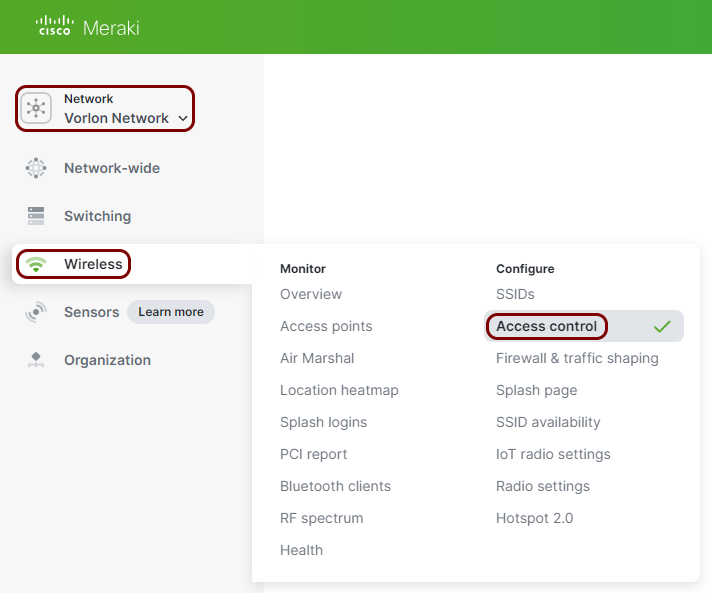
-
In the Access control pane, select the SSID that you want to edit.
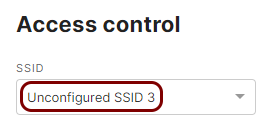 Note:You can choose an existing SSID to reconfigure it or one of the unconfigured SSIDs.
 -
In the Basic info section, enter the SSID for your network if you are configuring an
unconfigured SSID or keep/modify your current SSID as needed. Also, make sure that the SSID
status is set to Enabled.
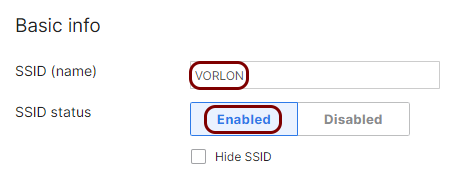
In this example, we used the SSID VORLON, but you can use any SSID you like.
-
In the Security section, select the Enterprise with option, and from
the drop-down menu, select the my RADIUS server option.
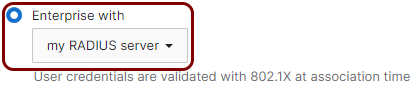 Important:Meraki does not support 802.1X authentication and MAC-based authentication on the same SSID. To use MAC-based authentication, create a separate SSID (see the following section: Optional: Create an SSID for MAC-based authentication).
 -
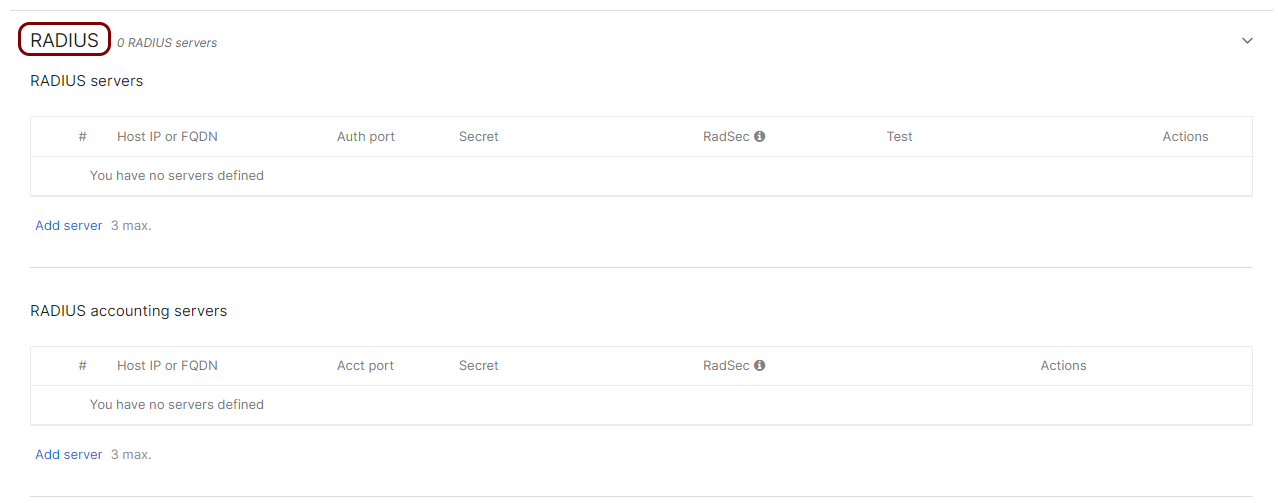
Scroll down to the RADIUS section and click on the heading to expand this section.
-
In the RADIUS servers subsection, click on the Add server link to add
the Portnox Cloud RADIUS server.

-
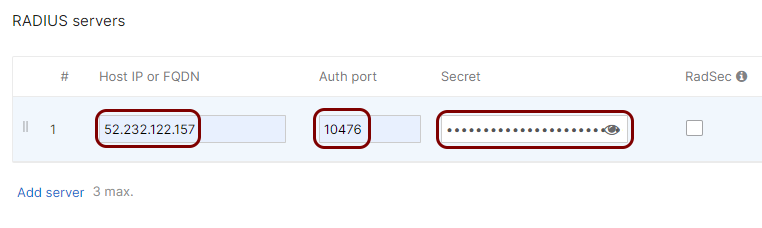
In the Host IP or FQDN field, enter the IP address of the Portnox Cloud RADIUS server that you created earlier, in the Auth port field,
enter the authentication port for this RADIUS server, and in the Secret field, enter the
shared secret for this server.
- Optional:
Test the connectivity to the server. Enter the credentials of a Portnox account in the
Username and Password fields, and then click on the
Begin test button.
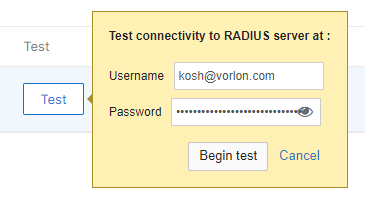 Note:We strongly recommend creating a temporary Portnox account for this purpose because the password is sent via MSCHAPv2 without a secure tunnel. Alternatively, you can use any account with an incorrect password and monitor Alerts for authentication failures. If an authentication failure appears in Alerts, it confirms that the RADIUS server is configured correctly.
 -
Click on the Done button to add the Cloud RADIUS server.

- Optional:
Test the connectivity to the server. Enter the credentials of a Portnox account in the
Username and Password fields, and then click on the
Begin test button.
-
Repeat the above steps in the RADIUS accounting
servers section, entering the same IP address and shared secret, and the Acct
port number from your Cloud RADIUS server configuration (for one or two servers, depending on your
configuration).
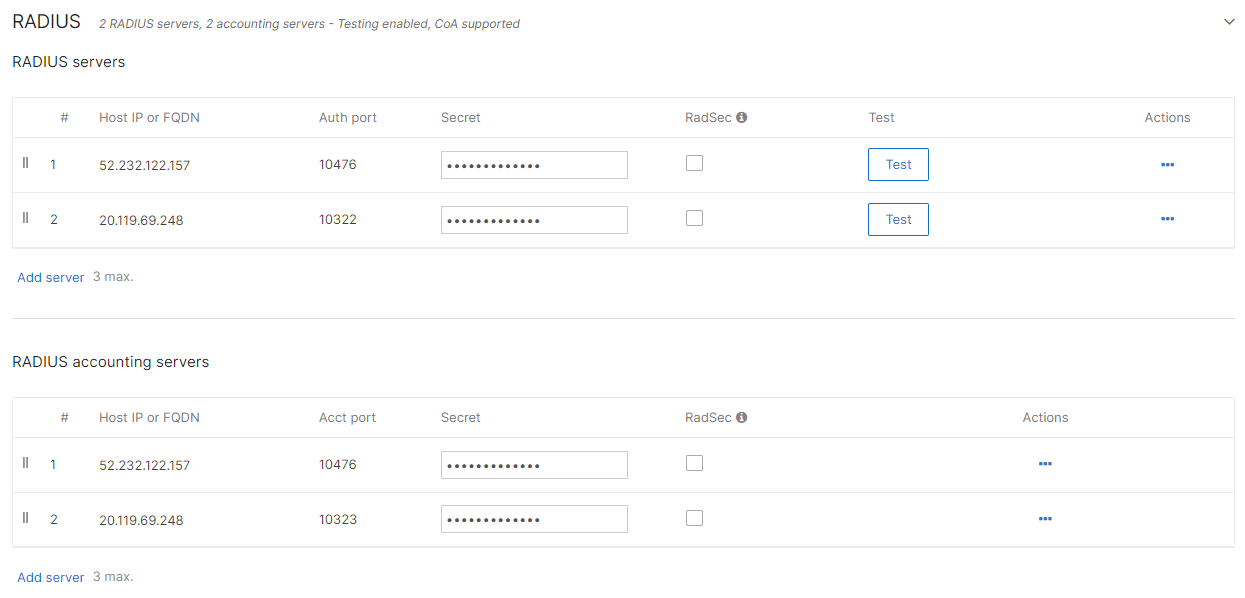
The above screenshot shows an example configuration for two Cloud RADIUS region servers. Adjust the IP addresses and port numbers to your tenant configuration.
- Optional:
Configure the timeouts to the values recommended by Portnox for communication with Cloud RADIUS servers.
-
Click on the Advanced RADIUS settings heading under the list of RADIUS servers to
expand this subsection.

-
Enter the following recommended values for RADIUS timeouts:

- Server timeout: 10
- Retry count: 2
- RADIUS fallback: Active
-
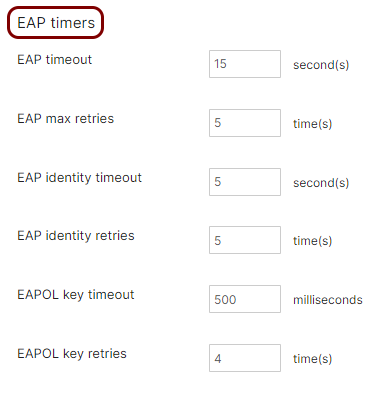
Click on the EAP timers heading to expand this subsection.
-
Click on the Advanced RADIUS settings heading under the list of RADIUS servers to
expand this subsection.
-
Click on the Save button to save your configuration.
Optional: Create an SSID for 802.1X authentication with RadSec
Follow one of the tasks in this section only if you want to connect to the Portnox™ Cloud RADIUS servers using RadSec. Meraki supports RadSec with server-only authentication and with mutual authentication (mTLS).
Server-only authentication
In this section, you will configure an SSID for 802.1X authentication, using RadSec connections with server-only authentication to the Portnox™ Cloud RADIUS servers.
-
Upload the Portnox Cloud root CA certificate (DigiCert Trusted Root G4 certificate) using the Meraki web
interface:
-
In the Meraki web interface, go to . Then, in the RADSEC tab, click on the Upload CA
certificate button, and select the file you downloaded from DigiCert.
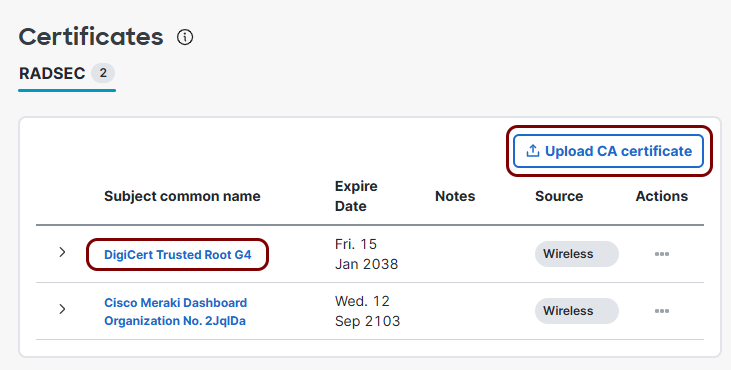
Result: The CA certificate will be uploaded and trusted by all networks in your Meraki environment.
-
In the Meraki web interface, go to . Then, in the RADSEC tab, click on the Upload CA
certificate button, and select the file you downloaded from DigiCert.
-
Configure your Portnox Cloud RADIUS server for RadSec with server-only authentication:
-
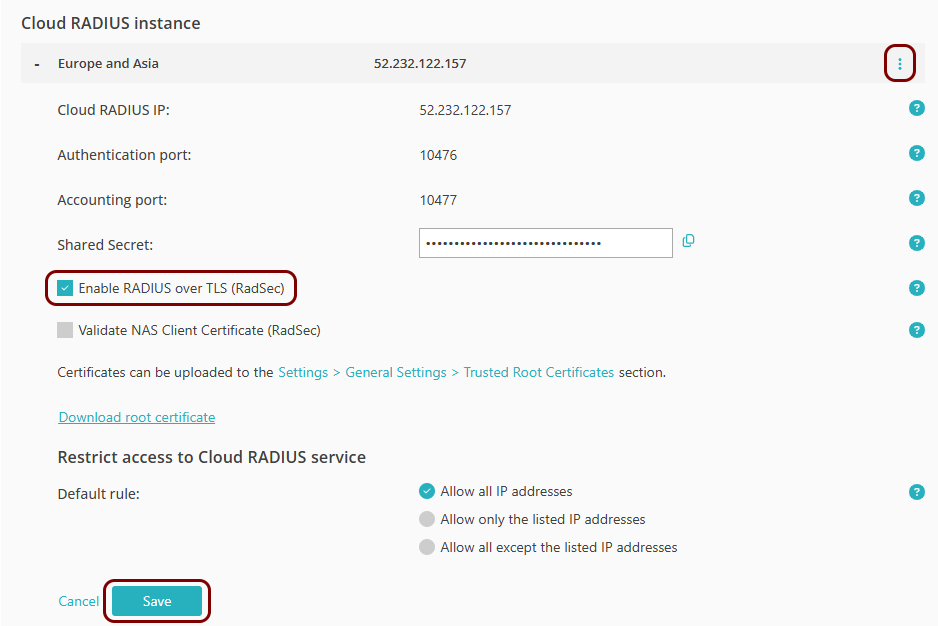
Select the instance that you want to configure for RadSec (either Europe and
Asia or United States and North America), click on , and activate the Enable RADIUS over TLS (RadSec) checkbox. Then,
click on the Save button.
-
Select the instance that you want to configure for RadSec (either Europe and
Asia or United States and North America), click on , and activate the Enable RADIUS over TLS (RadSec) checkbox. Then,
click on the Save button.
-
In the Meraki web interface, select your network, and then click on the menu option.
-
In the Access control pane, select the SSID that you want to edit.
Note:You can choose an existing SSID to reconfigure it or one of the unconfigured SSIDs.
-
In the Basic info section, enter the SSID for your network if you are configuring an
unconfigured SSID or keep/modify your current SSID as needed. Also, make sure that the SSID
status is set to Enabled.
In this example, we used the SSID VORLON, but you can use any SSID you like.
-
In the Security section, select the Enterprise with option, and from
the drop-down menu, select the my RADIUS server option.
Important:Meraki does not support 802.1X authentication and MAC-based authentication on the same SSID. To use MAC-based authentication, create a separate SSID (see the following section: Optional: Create an SSID for MAC-based authentication).
-
Scroll down to the RADIUS section and click on the heading to expand this section.
-
In the RADIUS servers subsection, click on the Add server link to add
the Portnox Cloud RADIUS server.
-
In the Host IP or FQDN field, enter the IP address of the Portnox Cloud RADIUS server
instance, in the Auth port field, enter the authentication port for this RADIUS server,
and in the Secret field, enter the string radsec. Then, activate
the RadSec checkbox.
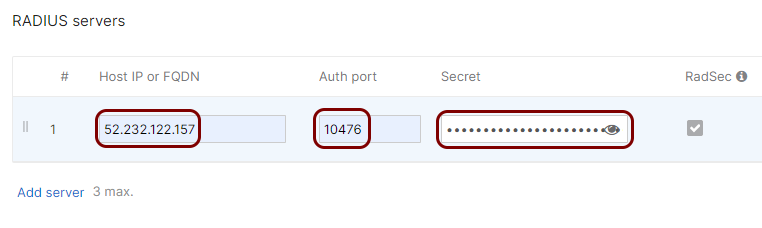 Important:Do not enter the shared secret copied from the Portnox Cloud RADIUS configuration. Otherwise, the connection will not work.
- Optional:
Test the connectivity to the server. Enter the credentials of a Portnox account in the
Username and Password fields, and then click on the
Begin test button.
Note:We strongly recommend creating a temporary Portnox account for this purpose because the password is sent via MSCHAPv2 without a secure tunnel. Alternatively, you can use any account with an incorrect password and monitor Alerts for authentication failures. If an authentication failure appears in Alerts, it confirms that the RADIUS server is configured correctly.
-
Click on the Done button to add the Cloud RADIUS server.

- Optional:
Test the connectivity to the server. Enter the credentials of a Portnox account in the
Username and Password fields, and then click on the
Begin test button.
-
Repeat the above steps in the RADIUS accounting servers section, entering the same IP
address, the radsec shared secret, and the Acct port number from
your Cloud RADIUS server configuration (for one or two servers, depending on your configuration).
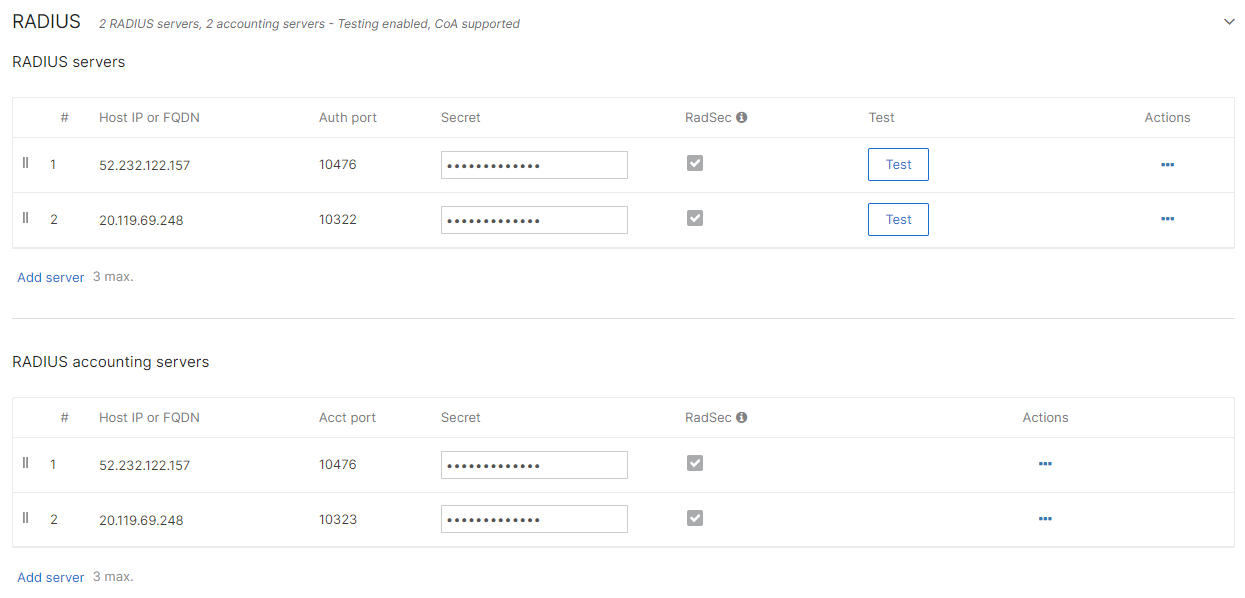
The above screenshot shows an example configuration for two Cloud RADIUS region servers. Adjust the IP addresses and port numbers to your tenant configuration.
- Optional:
Configure the timeouts to the values recommended by Portnox for communication with Cloud RADIUS servers.
-
Click on the Advanced RADIUS settings heading under the list of RADIUS servers to
expand this subsection.
-
Enter the following recommended values for RADIUS timeouts:
- Server timeout: 10
- Retry count: 2
- RADIUS fallback: Active
-
Click on the EAP timers heading to expand this subsection.
-
Click on the Advanced RADIUS settings heading under the list of RADIUS servers to
expand this subsection.
-
Click on the Save button to save your configuration.
Mutual authentication (mTLS)
In this section, you will configure an SSID for 802.1X authentication, using RadSec connections with mutual TLS authentication (mTLS) to the Portnox™ Cloud RADIUS servers.
Cisco Meraki is migrating Meraki AP certificate management from the Keeper PKI (described in this guide) to PureCA. Keeper remains supported until November 2026, then it is deprecated. New Meraki organizations use PureCA by default.
During the transition, the Meraki page shows both a Keeper section and a PureCA section. The steps below describe the Keeper workflow.
Meraki has not yet published a full PureCA configuration process, so we cannot document those steps yet. We are in contact with Meraki support to get clarity on the PureCA workflow. Once Meraki confirms the process, we will update this guide.
-
Upload the Portnox Cloud root CA certificate (DigiCert Trusted Root G4 certificate) using the Meraki web
interface:
-
In the Meraki web interface, go to . Then, in the RADSEC tab, click on the Upload CA
certificate button, and select the file you downloaded from DigiCert.
Result: The CA certificate will be uploaded and trusted by all networks in your Meraki environment.
-
In the Meraki web interface, go to . Then, in the RADSEC tab, click on the Upload CA
certificate button, and select the file you downloaded from DigiCert.
-
Download the client certificate from Meraki and upload it to Portnox Cloud:
-
In the Meraki web interface, go to . Then, in the RADSEC tab, scroll down to the RadSec AP
Certificates section and click on the Download CA button to save
the client certificate to local drive.

-
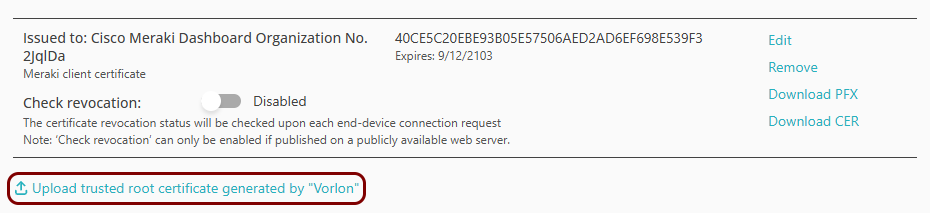
In Portnox Cloud, go to . Then, click on the Upload trusted root certificate generated by
... link and click the Certificate button to select the file you
just downloaded from Meraki. Then, click on the Save button.
-
In the Meraki web interface, go to . Then, in the RADSEC tab, scroll down to the RadSec AP
Certificates section and click on the Download CA button to save
the client certificate to local drive.
-
Configure your Portnox Cloud RADIUS server for RadSec with mTLS authentication:
-
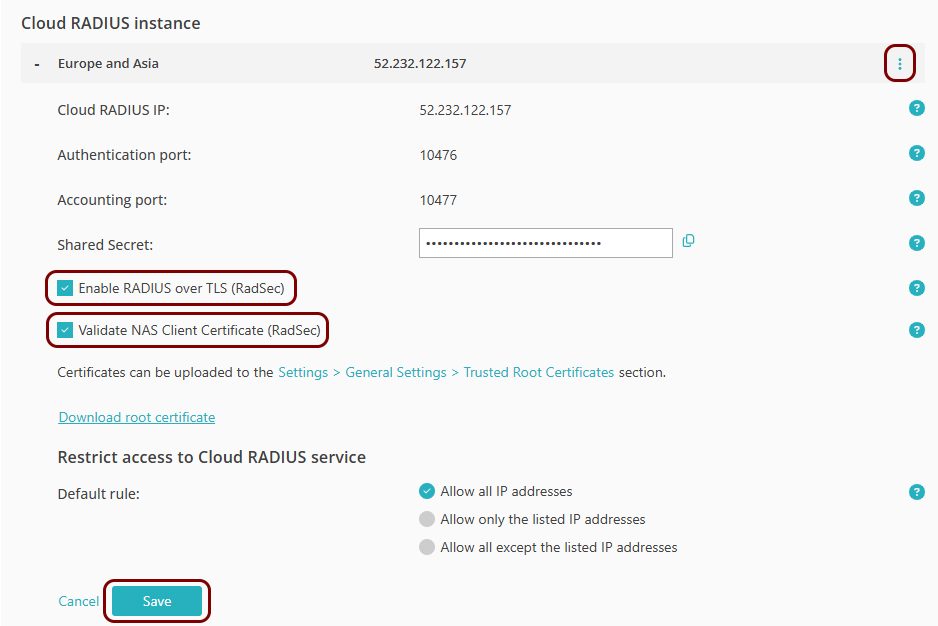
Select the instance that you want to configure for RadSec (either Europe and
Asia or United States and North America), click on , and activate the Enable RADIUS over TLS (RadSec) checkbox and the
Validate NAS Client Certificate (RadSec) checkbox. Then, click on the
Save button.
-
Select the instance that you want to configure for RadSec (either Europe and
Asia or United States and North America), click on , and activate the Enable RADIUS over TLS (RadSec) checkbox and the
Validate NAS Client Certificate (RadSec) checkbox. Then, click on the
Save button.
-
In the Meraki web interface, select your network, and then click on the menu option.
-
In the Access control pane, select the SSID that you want to edit.
Note:You can choose an existing SSID to reconfigure it or one of the unconfigured SSIDs.
-
In the Basic info section, enter the SSID for your network if you are configuring an
unconfigured SSID or keep/modify your current SSID as needed. Also, make sure that the SSID
status is set to Enabled.
In this example, we used the SSID VORLON, but you can use any SSID you like.
-
In the Security section, select the Enterprise with option, and from
the drop-down menu, select the my RADIUS server option.
Important:Meraki does not support 802.1X authentication and MAC-based authentication on the same SSID. To use MAC-based authentication, create a separate SSID (see the following section: Optional: Create an SSID for MAC-based authentication).
-
Scroll down to the RADIUS section and click on the heading to expand this section.
-
In the RADIUS servers subsection, click on the Add server link to add
the Portnox Cloud RADIUS server.
-
In the Host IP or FQDN field, enter the IP address of the Portnox Cloud RADIUS server
instance, in the Auth port field, enter the authentication port for this RADIUS server,
and in the Secret field, enter the string radsec. Then, activate
the RadSec checkbox.
Important:Do not enter the shared secret copied from the Portnox Cloud RADIUS configuration. Otherwise, the connection will not work.
- Optional:
Test the connectivity to the server. Enter the credentials of a Portnox account in the
Username and Password fields, and then click on the
Begin test button.
Note:We strongly recommend creating a temporary Portnox account for this purpose because the password is sent via MSCHAPv2 without a secure tunnel. Alternatively, you can use any account with an incorrect password and monitor Alerts for authentication failures. If an authentication failure appears in Alerts, it confirms that the RADIUS server is configured correctly.
-
Click on the Done button to add the Cloud RADIUS server.
- Optional:
Test the connectivity to the server. Enter the credentials of a Portnox account in the
Username and Password fields, and then click on the
Begin test button.
-
Repeat the above steps in the RADIUS accounting servers section, entering the same IP
address, the radsec shared secret, and the Acct port number from
your Cloud RADIUS server configuration (for one or two servers, depending on your configuration).
The above screenshot shows an example configuration for two Cloud RADIUS region servers. Adjust the IP addresses and port numbers to your tenant configuration.
- Optional:
Configure the timeouts to the values recommended by Portnox for communication with Cloud RADIUS servers.
-
Click on the Advanced RADIUS settings heading under the list of RADIUS servers to
expand this subsection.
-
Enter the following recommended values for RADIUS timeouts:
- Server timeout: 10
- Retry count: 2
- RADIUS fallback: Active
-
Click on the EAP timers heading to expand this subsection.
-
Click on the Advanced RADIUS settings heading under the list of RADIUS servers to
expand this subsection.
-
Click on the Save button to save your configuration.
Optional: Create an SSID for MAC-based authentication
This is an optional task. Follow this task only if you want to authenticate devices, such as IoT devices, that do not support 802.1X, using their MAC address instead. Skip this task if you do not need MAC-based authentication.
-
In the Meraki web interface, select your network, and then click on the menu option.
-
In the Access control pane, select the SSID that you want to edit.
Note:You can choose an existing SSID to reconfigure it or one of the unconfigured SSIDs.
-
In the Basic info section, enter a name for the SSID, and make sure that the SSID
status is set to Enabled.
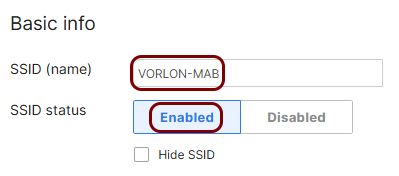 Note:Use a different SSID than the one that you configured for 802.1X authentication.
 -
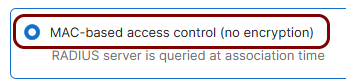
In the Security section, select the MAC-based access control (no
encryption) option.
-
Scroll down to the RADIUS section and click on the heading to expand this section.
-
In the RADIUS servers subsection, click on the Add server link to add
the Portnox Cloud RADIUS server.
-
In the Host IP or FQDN field, enter the IP address of the Portnox Cloud RADIUS server that you created earlier, in the Auth port field,
enter the authentication port for this RADIUS server, and in the Secret field, enter the
shared secret for this server.
- Optional:
Test the connectivity to the server. Enter the credentials of a Portnox account in the
Username and Password fields, and then click on the
Begin test button.
Note:We strongly recommend creating a temporary Portnox account for this purpose because the password is sent via MSCHAPv2 without a secure tunnel. Alternatively, you can use any account with an incorrect password and monitor Alerts for authentication failures. If an authentication failure appears in Alerts, it confirms that the RADIUS server is configured correctly.
-
Click on the Done button to add the Cloud RADIUS server.
- Optional:
Test the connectivity to the server. Enter the credentials of a Portnox account in the
Username and Password fields, and then click on the
Begin test button.
-
Repeat the above steps in the RADIUS accounting
servers section, entering the same IP address and shared secret, and the Acct
port number from your Cloud RADIUS server configuration (for one or two servers, depending on your
configuration).
The above screenshot shows an example configuration for two Cloud RADIUS region servers. Adjust the IP addresses and port numbers to your tenant configuration.
- Optional:
Configure the timeouts to the values recommended by Portnox for communication with Cloud RADIUS servers.
-
Click on the Advanced RADIUS settings heading under the list of RADIUS servers to
expand this subsection.
-
Enter the following recommended values for RADIUS timeouts:
- Server timeout: 10
- Retry count: 2
- RADIUS fallback: Active
-
Click on the EAP timers heading to expand this subsection.
-
Click on the Advanced RADIUS settings heading under the list of RADIUS servers to
expand this subsection.
-
Click on the Save button to save your configuration.
Result: You created a separate SSID that authenticates IoT devices by their MAC address using the Portnox Cloud RADIUS servers on the basis of MAC-based accounts.
Optional: Create an SSID for IPSK authentication
This is an optional task. Follow this task only if you want to authenticate devices using RADIUS-based identity pre-shared keys (IPSK). Cisco Meraki calls this feature Identity PSK.
For more information about IPSK in Portnox Cloud, see the following topic: Create a MAC-based account.
-
In the Meraki web interface, select your network, and then click on the menu option.
-
In the Access control pane, select the SSID that you want to edit.
Note:You can choose an existing SSID to reconfigure it or one of the unconfigured SSIDs.
-
In the Basic info section, enter a name for the SSID, and make sure that the SSID
status is set to Enabled.
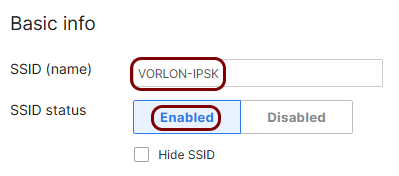 Note:Use a different SSID than the ones that you configured for 802.1X or MAC-based authentication.
 -
In the Security section, select the Identity PSK with RADIUS option,
and from the drop-down menu, select the MAC-based Authentication option.

-
Scroll down to the RADIUS section and click on the heading to expand this section.
-
In the RADIUS servers subsection, click on the Add server link to add
the Portnox Cloud RADIUS server.
-
In the Host IP or FQDN field, enter the IP address of the Portnox Cloud RADIUS server that you created earlier, in the Auth port field,
enter the authentication port for this RADIUS server, and in the Secret field, enter the
shared secret for this server.
- Optional:
Test the connectivity to the server. Enter the credentials of a Portnox account in the
Username and Password fields, and then click on the
Begin test button.
Note:We strongly recommend creating a temporary Portnox account for this purpose because the password is sent via MSCHAPv2 without a secure tunnel. Alternatively, you can use any account with an incorrect password and monitor Alerts for authentication failures. If an authentication failure appears in Alerts, it confirms that the RADIUS server is configured correctly.
-
Click on the Done button to add the Cloud RADIUS server.
- Optional:
Test the connectivity to the server. Enter the credentials of a Portnox account in the
Username and Password fields, and then click on the
Begin test button.
-
Repeat the above steps in the RADIUS accounting
servers section, entering the same IP address and shared secret, and the Acct
port number from your Cloud RADIUS server configuration (for one or two servers, depending on your
configuration).
The above screenshot shows an example configuration for two Cloud RADIUS region servers. Adjust the IP addresses and port numbers to your tenant configuration.
- Optional:
Configure the timeouts to the values recommended by Portnox for communication with Cloud RADIUS servers.
-
Click on the Advanced RADIUS settings heading under the list of RADIUS servers to
expand this subsection.
-
Enter the following recommended values for RADIUS timeouts:
- Server timeout: 10
- Retry count: 2
- RADIUS fallback: Active
-
Click on the EAP timers heading to expand this subsection.
-
Click on the Advanced RADIUS settings heading under the list of RADIUS servers to
expand this subsection.
-
Click on the Save button to save your configuration.
Result: You created a separate SSID that authenticates devices using identity pre-shared keys from Portnox Cloud.