
Integrate with Kiwi Syslog Server
In this topic, you will learn how to send Portnox™ Cloud alerts to on-premises SolarWinds Kiwi Syslog Server.
Before you start, download and install Kiwi Syslog Server Free Edition on a physical or virtual machine.
Configure Kiwi Syslog Server
In this section, you will configure the Kiwi Syslog Server to accept syslog data from Portnox Cloud.
-
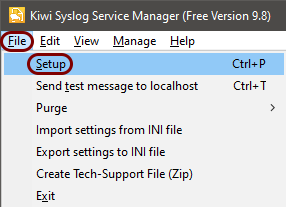
In the Kiwi Syslog Server Manager window, select the option.
-
In the Kiwi Syslog Server Setup window, select the option, and in the right-hand side pane, configure the following:
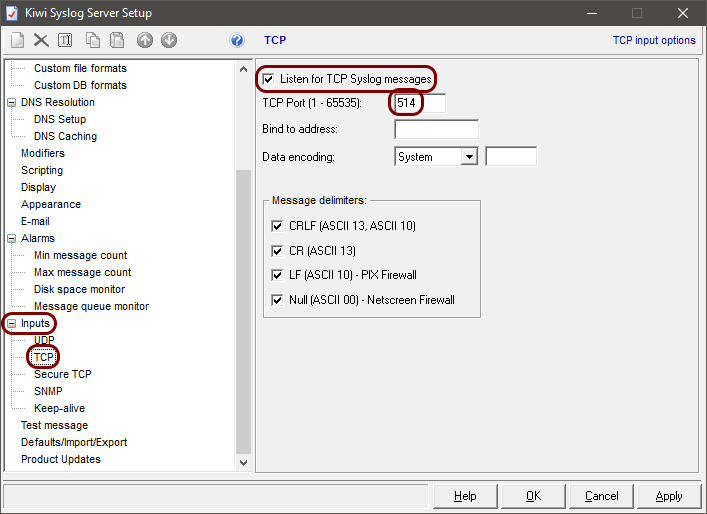
- Activate the Listen for TCP Syslog messages checkbox.
- In the TCP Port (1-65535) field, enter 514.
- Optional: In the Bind to address field, enter the IP address that you want to bind to, for example, the interface address in the same subnet as the LDAP Broker machine.
- Optional:
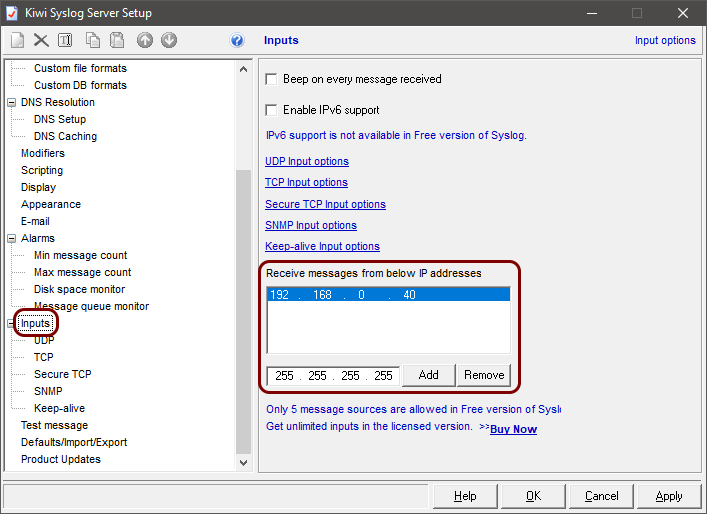
If you’re using the free version of Kiwi Syslog Server, in the Kiwi Syslog Server Setup
window, select the Inputs option, and in the right-hand side pane, in the Receive
messages from below IP addresses section, add the IP address of the LDAP Broker machine.
Configure Portnox Cloud with the portnox-siem Docker container
In this section, you will learn how to configure Portnox™ Cloud to send alert data to the on-premises portnox-siem Docker container and then forward them to the on-premises Kiwi Syslog Server.
-
In the Cloud portal top menu, click on the Settings option.

-
In the Cloud portal left-hand menu, click on the option.
-
Create a new SIEM integration.
-
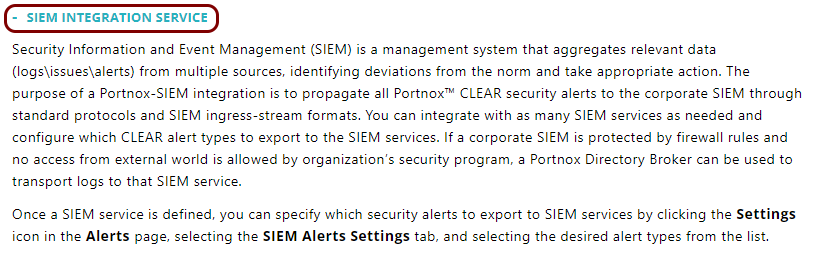
In the SIEM integration service section, click on the Add a new SIEM
integration link.
The New SIEM integration section opens.
-
In the Integration type field, select the Custom
option.

-
In the Name field, enter the name for the new integration.

In this example, we used the name Kiwi but you can use any name you like.
-
In the Status field, select the Enabled option.

-
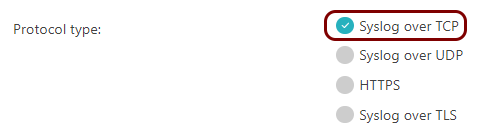
In the Protocol type field, select the Syslog over TCP
option.
-
In the IP field, enter the private IP address of the machine where Kiwi Syslog
Server is installed.

-
In the Port field, type 514.

-
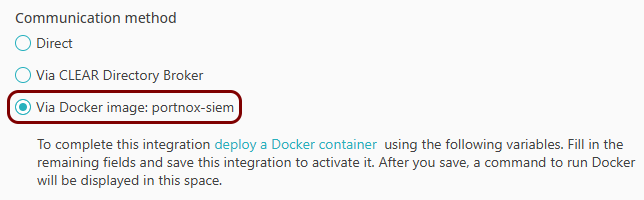
In the Communication method field, select the Via Docker image:
portnox-siem option.
-
In the Data format field, select the CEF option.

-
Click on the Save button to add the integration.

-
In your list of SIEM integrations, click on the Edit button in the row
representing the configuration that you just created.

-
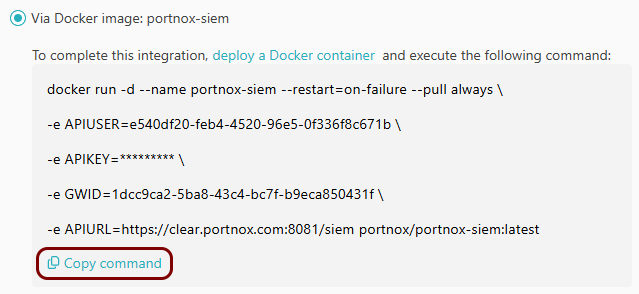
Click on the Copy command link under the Via Docker image:
portnox-siem option.
- Optional:
Click on the Test button in the row representing the
configuration that you just created.

Result: You will see the following information in this row: Docker image: Active.
-
In the SIEM integration service section, click on the Add a new SIEM
integration link.
- Optional:
To configure the types of alerts sent to your SIEM solution, see the following topic: Portnox Cloud alerts.
Note:To learn more about the content and format of alert messages sent to SIEM solutions, see the following topic: Format and content of alert information for SIEM.
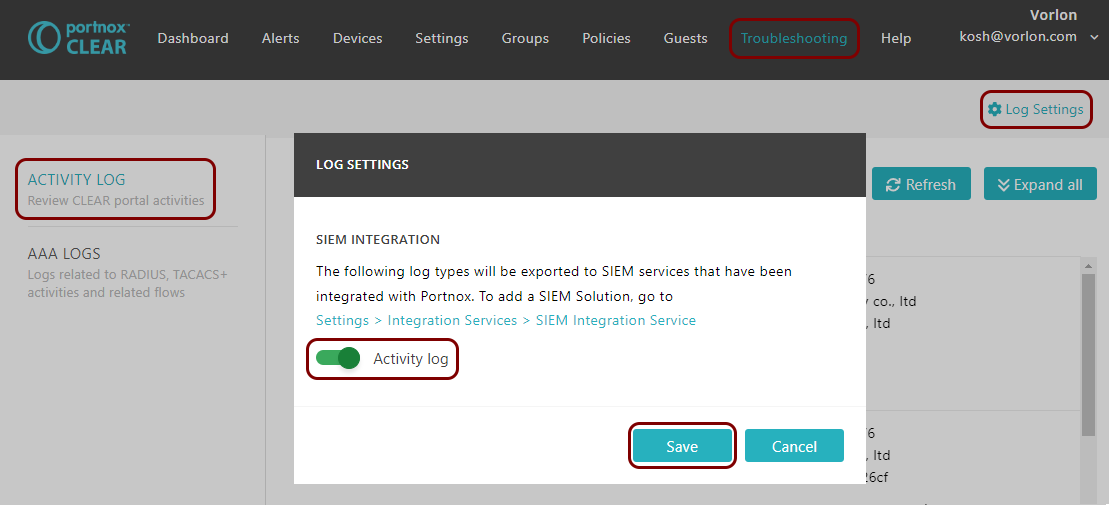
You can also send all of the Portnox Cloud activity log (activities performed by administrators in Portnox Cloud) to your SIEM solution. To do this, go to , activate the Activity log switch, and click on the Save button.
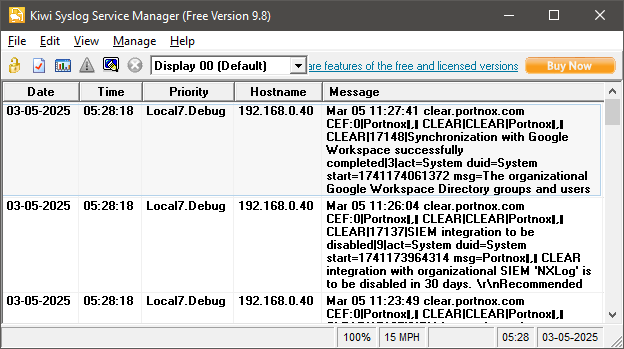
Result: Kiwi Syslog Server is receiving alerts from Portnox Cloud via the portnox-siem Docker container.
Configure Portnox Cloud with LDAP Broker
In this section, you will learn how to configure Portnox™ Cloud to send alert data to LDAP Broker and then forward them to the on-premises Kiwi Syslog Server.
-
In the Cloud portal top menu, click on the Settings option.
-
In the Cloud portal left-hand menu, click on the option.
-
Create a new SIEM integration.
-
In the SIEM integration service section, click on the Add a new SIEM
integration link.
The New SIEM integration section opens.
-
In the Integration type field, select the Custom
option.
-
In the Name field, enter the name for the new integration.
In this example, we used the name Kiwi but you can use any name you like.
-
In the Status field, select the Enabled option.
-
In the Protocol type field, select the Syslog over TCP
option.
-
In the IP field, enter the private IP address of the machine where Kiwi Syslog
Server is installed.
-
In the Port field, type 514.
-
In the Communication method field, select the Via Portnox Cloud Directory
Broker option.

-
In the Data format field, select the CEF option.
-
Click on the Save button to add the integration.
-
In the SIEM integration service section, click on the Add a new SIEM
integration link.
- Optional:
To configure the types of alerts sent to your SIEM solution, see the following topic: Portnox Cloud alerts.
Note:To learn more about the content and format of alert messages sent to SIEM solutions, see the following topic: Format and content of alert information for SIEM.
You can also send all of the Portnox Cloud activity log (activities performed by administrators in Portnox Cloud) to your SIEM solution. To do this, go to , activate the Activity log switch, and click on the Save button.
Result: Kiwi Syslog Server is receiving alerts from Portnox Cloud via LDAP Broker.