
Guest access – Arista CV-CUE
In this topic, you will learn how to configure Arista™ CloudVision Cognitive Unified Edge (CV-CUE) to work together with the Portnox™ Cloud captive portal for guest user authentication.
Before you begin, configure the guest network in Portnox Cloud, generate a random shared secret of up to 40 characters (for example, using a password manager), edit the captive portal, enter the shared secret in the Shared Secret field, and save the configuration. Note down the shared secret and the values of the IP (for walled garden) and Captive Portal URL fields, since you will need them later.
Create RADIUS server entries
In this section, you will create RADIUS server entries for the Portnox™ Cloud RADIUS servers. You will use these servers later when you configure your SSIDs.
-
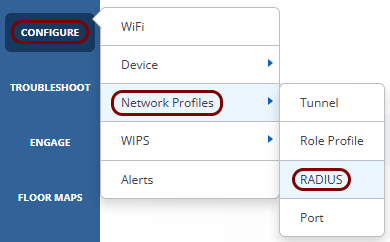
In the left-hand side menu of CV-CUE, click on the following menu options: .
-
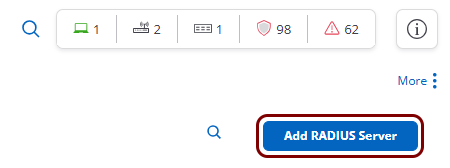
Click on the Add RADIUS Server button in the top-right corner.
-
Configure the new RADIUS server:
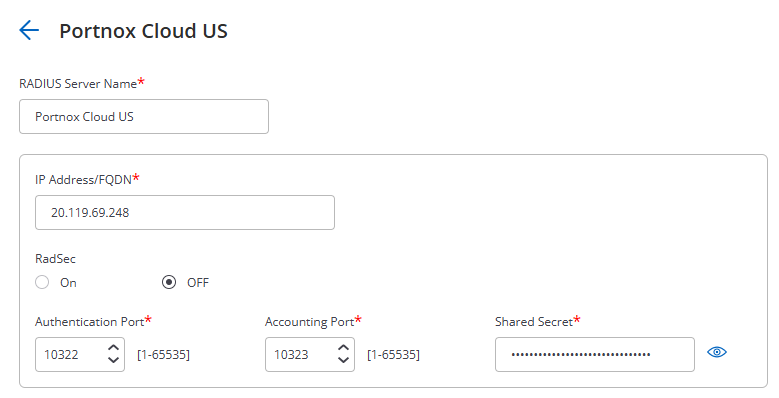
- In the RADIUS Server Name field, enter a display name for this server, for example, the name of the corresponding Portnox Cloud RADIUS server.
- In the IP Address/FQDN field, enter the Cloud RADIUS IP value from Portnox Cloud.
- In the Authentication Port and Accounting Port fields, enter the Authentication Port and Accounting Port values from Portnox Cloud.
- In the Shared Secret field, enter the Shared Secret value from Portnox Cloud.
- Click on the Save button.
-
If you use two Cloud RADIUS servers in both regions, repeat the above steps for the second RADIUS server.
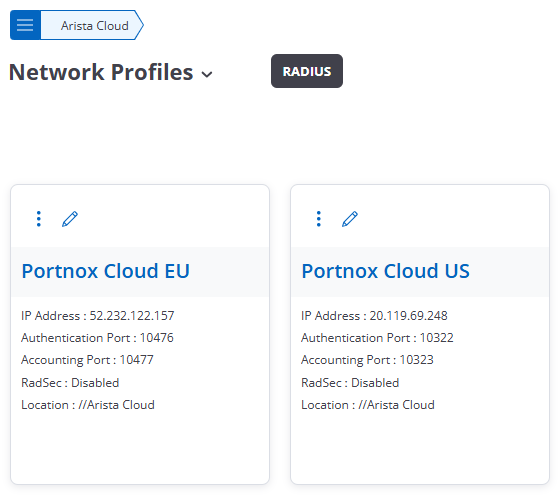
The above screenshot shows an example configuration with two added RADIUS servers, one for each Cloud RADIUS region. Adjust the names, IP addresses, and port numbers to your tenant configuration.
Create the guest SSID
In this section, you will create a new open SSID for guest access, and configure it to redirect guests to the Portnox™ Cloud captive portal.
-
In the left-hand side menu of CV-CUE, click on the following menu options: .
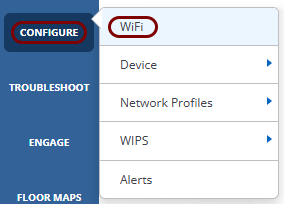
-
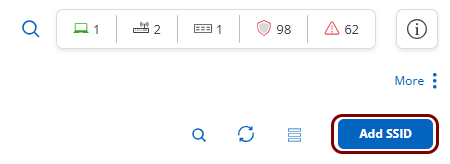
Click on the Add SSID button in the top-right corner.
-
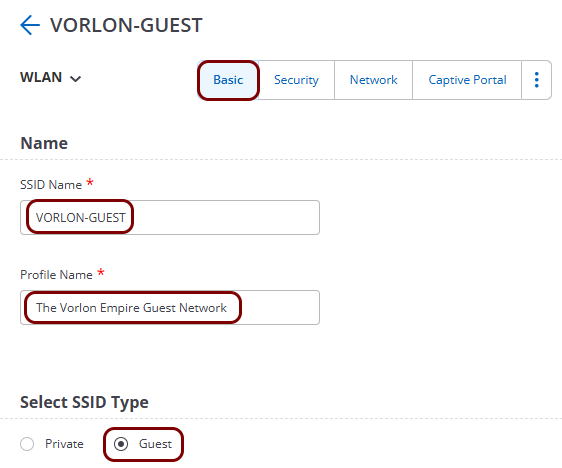
On the Basic tab, in the SSID Name field, enter the network name that
guests see when they search for Wi-Fi networks. In the Profile Name field, enter a name for
this profile that is only used internally by CV-CUE. Then, in the Select SSID Type section,
select the Guest option.
-
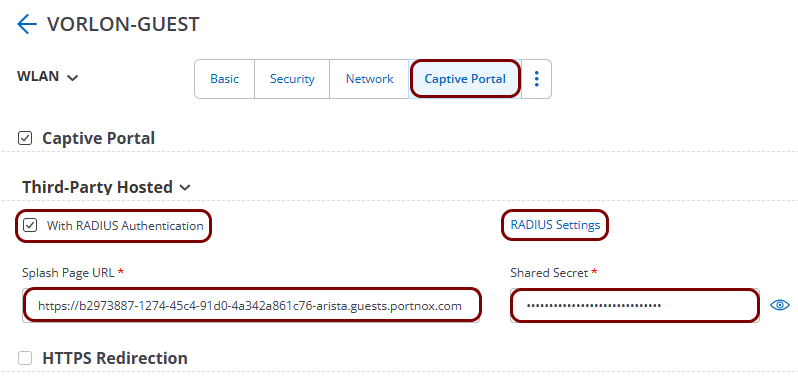
On the Captive Portal tab, configure the captive portal:
-
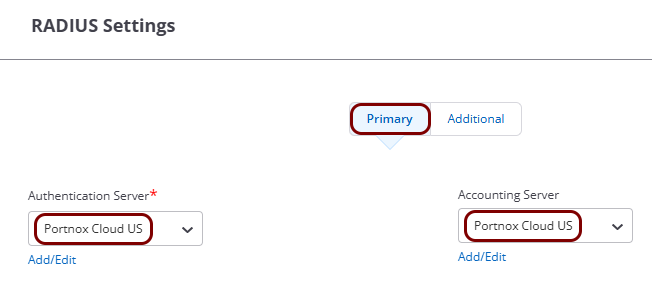
Click on the RADIUS Settings link next to the With RADIUS
Authentication checkbox, and in the RADIUS Settings pane, configure the RADIUS
servers:
-
In the Websites that users can access before login section, add the addresses from the
IP (for walled garden) field that you obtained when you configured the guest network in
Portnox Cloud:
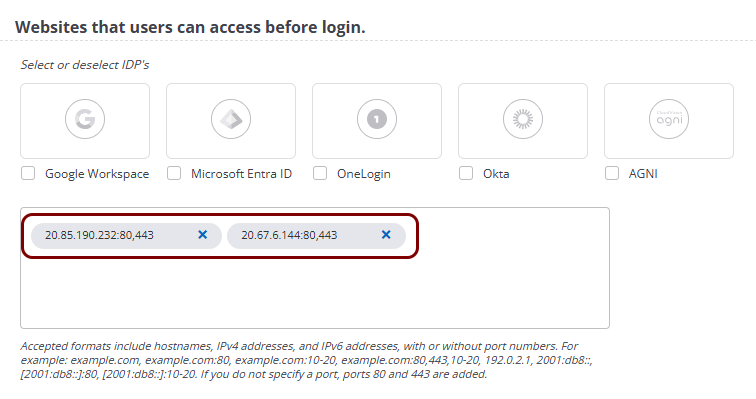 Note:CV-CUE does not accept a list of addresses separated by commas. Every address must appear as a separate entry.Warning:The NAS device must be able to communicate with the walled garden IP addresses at all times. If this communication is blocked in any way, the captive portal will not work, and guest devices will be unable to connect to the network. Before you proceed, verify that all firewalls, ACLs, and any other security measures that could interfere with this communication are configured to explicitly allow the walled garden IP addresses.
Result: You created an open SSID that redirects guests to the Portnox Cloud captive portal for authentication.