
Onboard Windows devices with user certificates using SOTI MobiControl and SCEP
In this topic, you will learn how to deploy Portnox™ Cloud user certificates to Windows devices via SOTI MobiControl and SCEP.
Turn on the Portnox Cloud SCEP services
In this section, you will configure Portnox™ Cloud to provide SCEP services to your devices.
If you have previously turned on the Portnox Cloud SCEP services, skip to the later steps.
Portnox Cloud SCEP services let devices contact the Cloud SCEP server and get a unique certificate for the device or for the specific user of the device.
-
In the Cloud portal top menu, click on the Settings option.

-
In the Cloud portal left-hand side menu, click on the option.
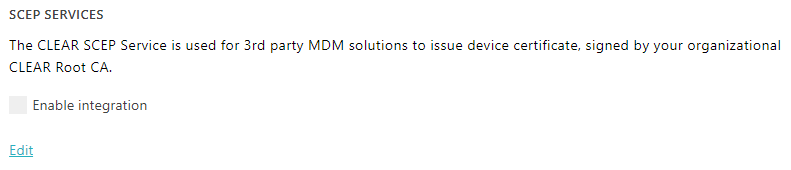
-
Enable integration with SCEP services.
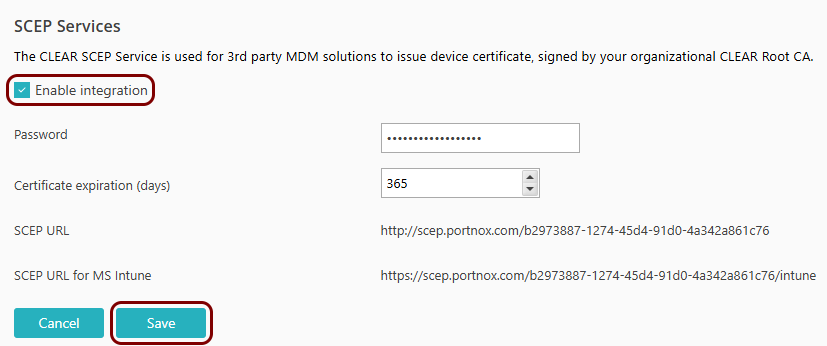
- Click on the Edit link.
- Activate the Enable integration checkbox.
- Click on the Save button.
-
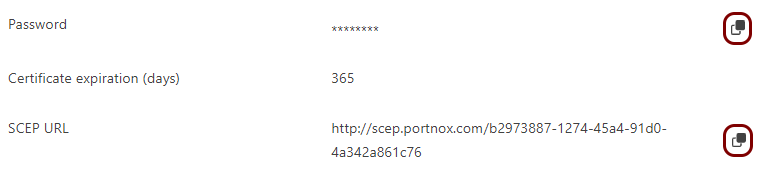
Click on the ⧉ icon next to the Password field to
copy the SCEP password, and paste it in a text file for later use.
Download the root CA certificate from Portnox Cloud
In this section, you will download the Portnox™ Cloud root CA certificate from the Cloud portal.
You need the root CA certificate so that your managed devices can verify the validity of Cloud RADIUS servers, which have certificates signed by this root CA certificate. If the root CA certificate is not distributed to managed devices, some devices may show a security warning each time that the user connects to networks managed by Portnox Cloud.
-
In the Cloud portal top menu, click on the Settings option.
-
In the Cloud portal left-hand side menu, click on the option.
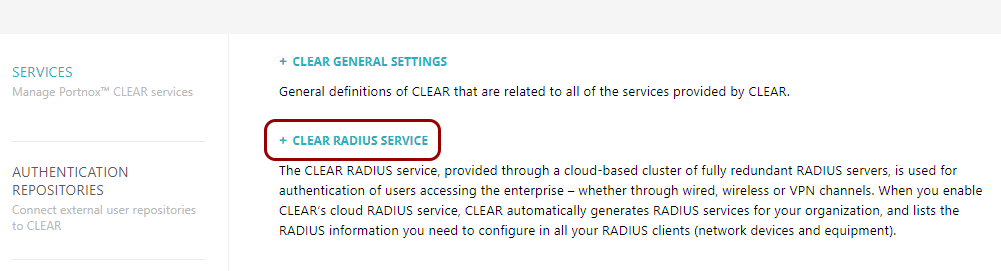
The right-hand pane shows the list of active servers.

-
Click on the Download root certificate link to download the root CA certificate.
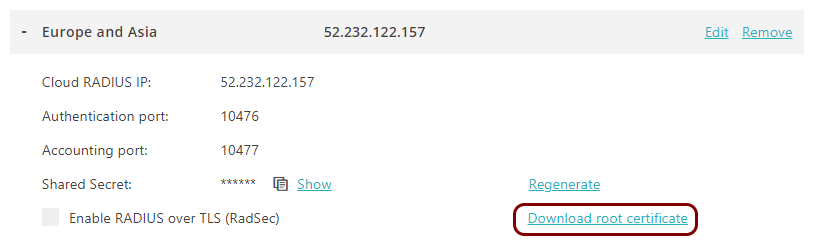
Save the file on your disk to use it later. The default name of the file is rootCertificate.cer.
Copy the tenant CA certificate thumbprint from Portnox Cloud
In this section, you will copy the tenant CA certificate thumbprint from the Cloud portal and save it, so you can use it later in SOTI MobiControl configuration.
-
In the Cloud portal top menu, click on the Settings option.
-
In the Cloud portal left-hand side menu, click on the option.
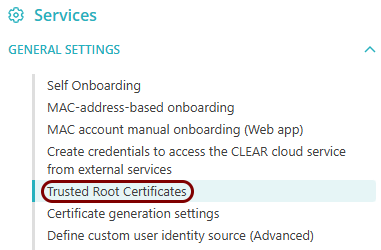
-
In the Trusted Root Certificates section, select the value of the
Thumbprint next to the certificate that you are currently using (if more than one) and
use your operating system’s copy function to copy this value to the clipboard.

Optional: Hand over information from the Portnox Cloud team to the SOTI MobiControl team
In this section, you will learn what information was collected in previous steps from Portnox Cloud, which is needed to configure SOTI MobiControl to work with Portnox Cloud.
If different people are responsible for managing Portnox Cloud and SOTI MobiControl , here is the information you need to hand over:
-
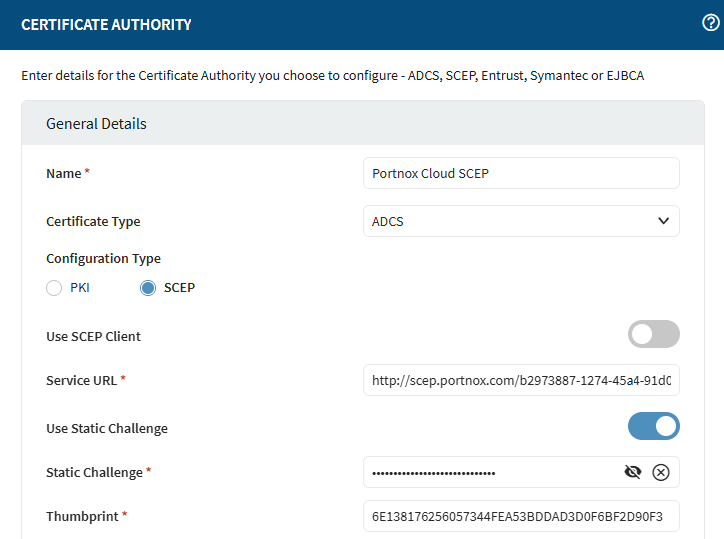
The URL of the Portnox Cloud SCEP server. For example, https://scep.portnox.com/b2973887-1274-45d4-91d0-4a342a861c76.
-
The password for the SCEP server.
-
The root CA certificate file in the Base-64 encoded X.509 format. For example, rootCertificate.cer.
-
The thumbprint of the tenant CA certificate. For example, 6E138176256057344FEA53BDDAD3D0F6BF2D90F3.
Create the SCEP CA configuration and the SCEP request template
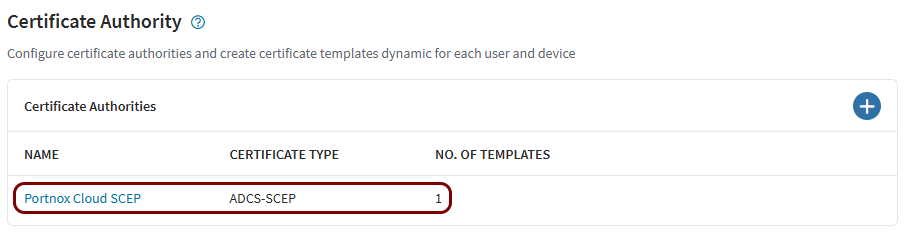
In this section, you will create the SCEP CA configuration and the SCEP request template in SOTI MobiControl. This configuration and this template will be used by the profiles that you will create later.
-
In the left-hand side menu, select: .
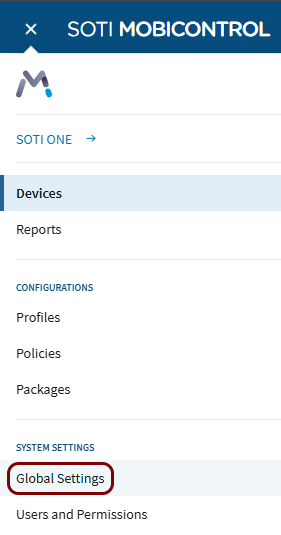
-
In the Global Settings menu, scroll down and select: .
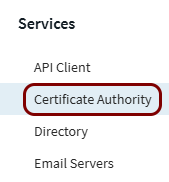
-
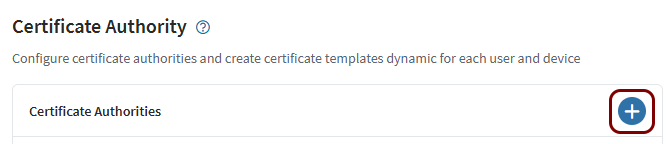
In the Certificate Authority window, click on the +
button.
-
In the CERTIFICATE AUTHORITY window:
-
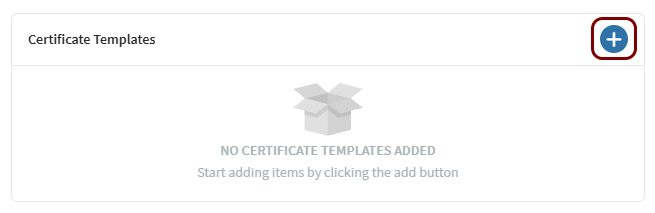
Scroll down the CERTIFICATE AUTHORITY window to the Certificate
Templates section and click on the + button.
-
In the Template Details section:
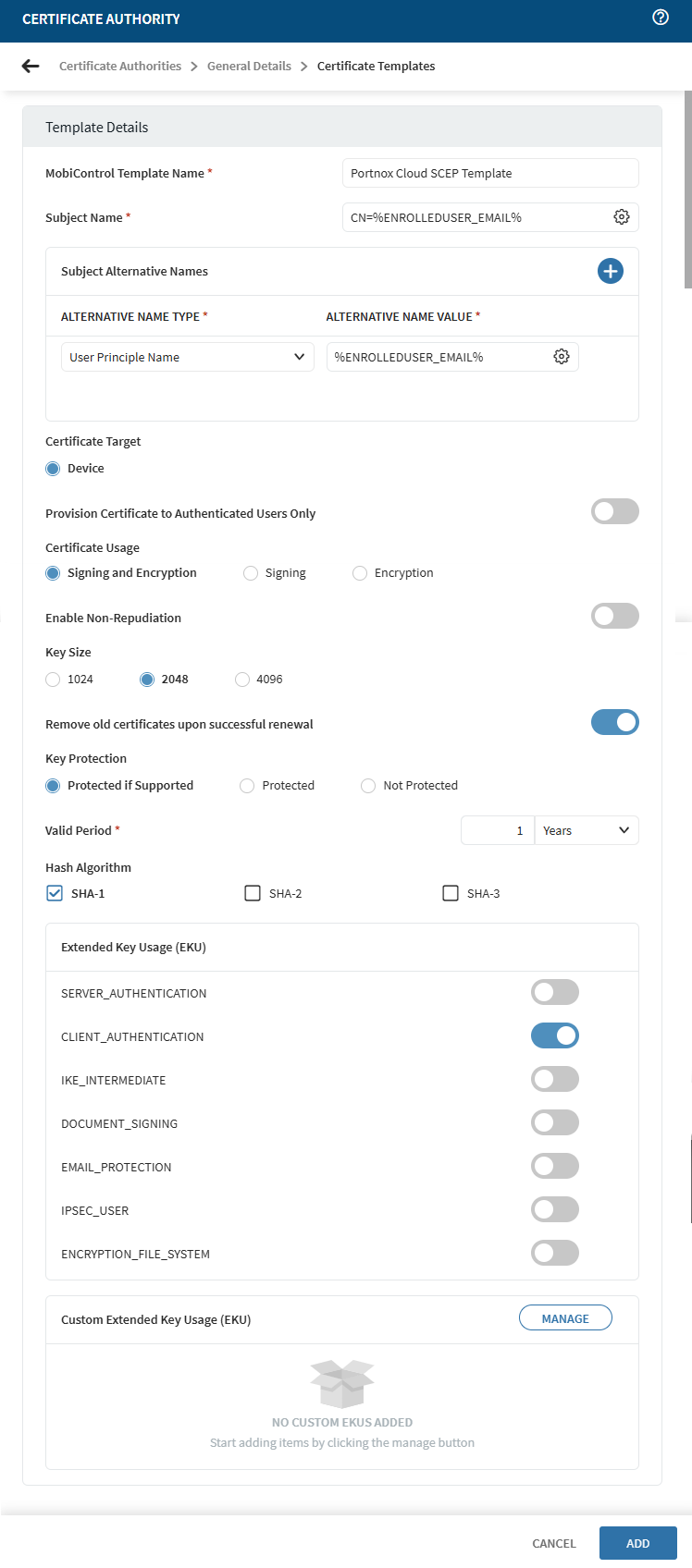
Result: You created a configuration for the Portnox Cloud SCEP CA and the SCEP request template.
Create a profile for Windows
In this section, you will create a profile in SOTI MobiControl for Windows devices. This profile will contain the necessary certificates as well as SCEP and Wi-Fi configurations.
-
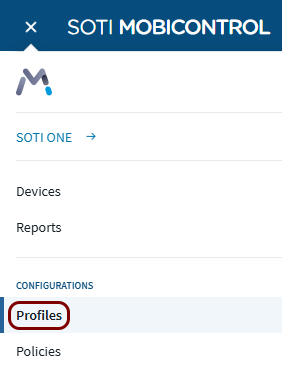
In the left-hand side menu, select: .
-
In the top-right corner of the Profiles pane, click on the NEW PROFILE
button.

-
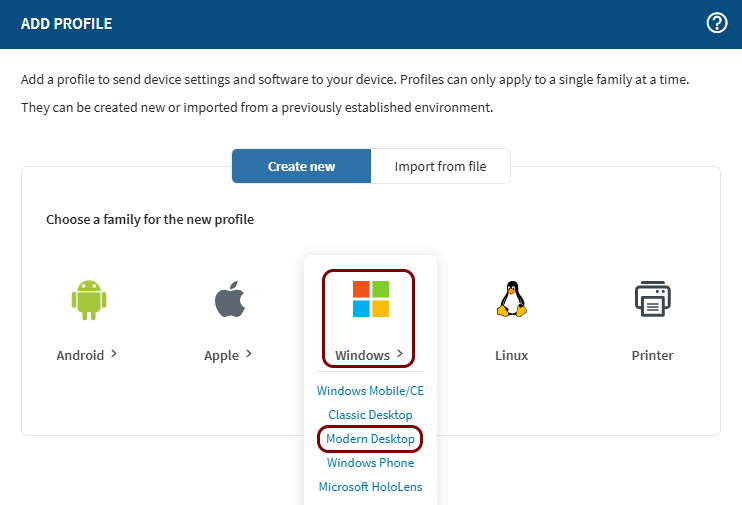
In the ADD PROFILE window, click on the Windows icon, and then select
the Modern Desktop option.
-
In the CREATE PROFILE window, in the GENERAL tab, in the
Profile Name field, enter a name for the profile.
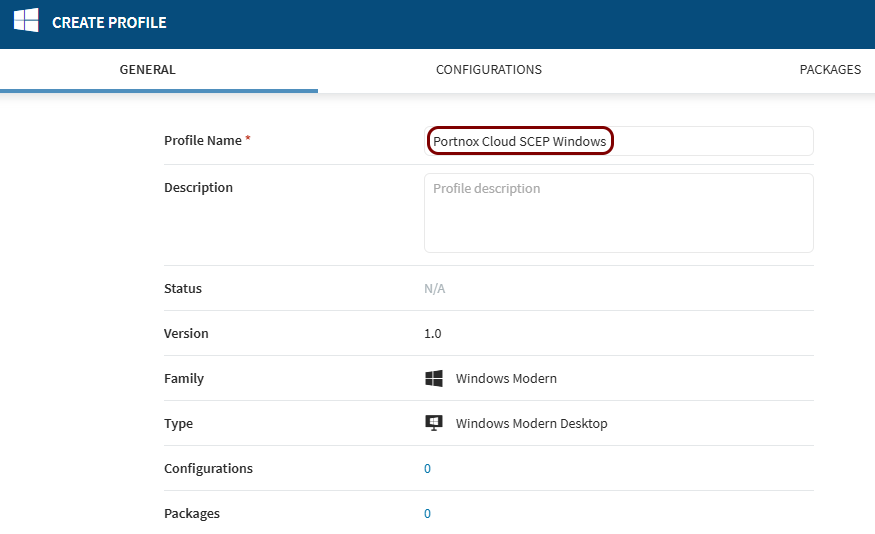
In this example, we used the name Portnox Cloud SCEP Windows, but you can use any name you like.
-
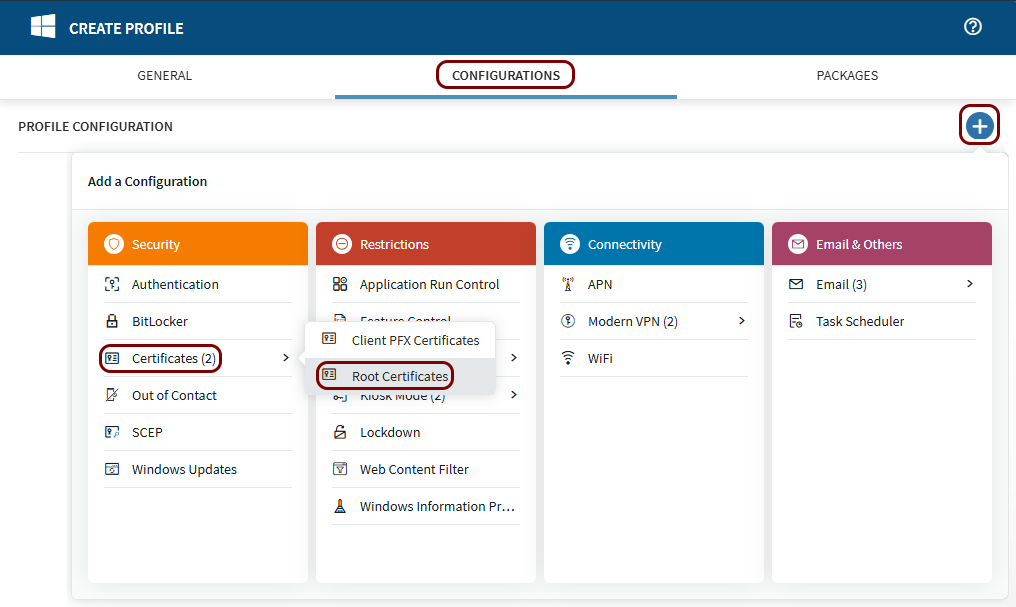
Click on the CONFIGURATIONS tab and then click on the + button in the top-right corner. Then, select the
Certificates option and then the Root Certificates option.
-
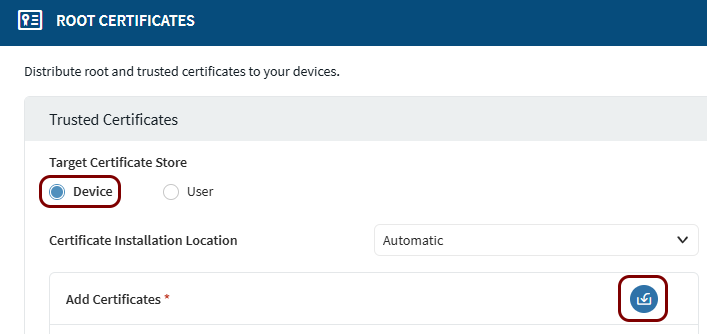
In the ROOT CERTIFICATES window, in Target Certificate Store section,
select the Device option, and in the Add Certificates row, click on
the button on the right-hand side to import a new certificate.
-
In the Add Certificate window, click on the Browse button, find the
root CA certificate file that you downloaded earlier from Portnox Cloud, and then click on the IMPORT button.

-
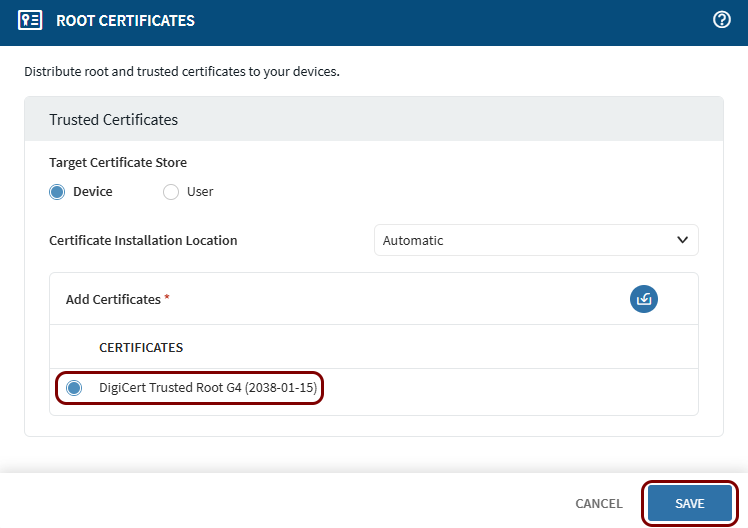
In the ROOT CERTIFICATES window, activate the radio button next to the DigiCert
Trusted Root G4 certificate (root CA certificate). Then, click on the Save
button.
-
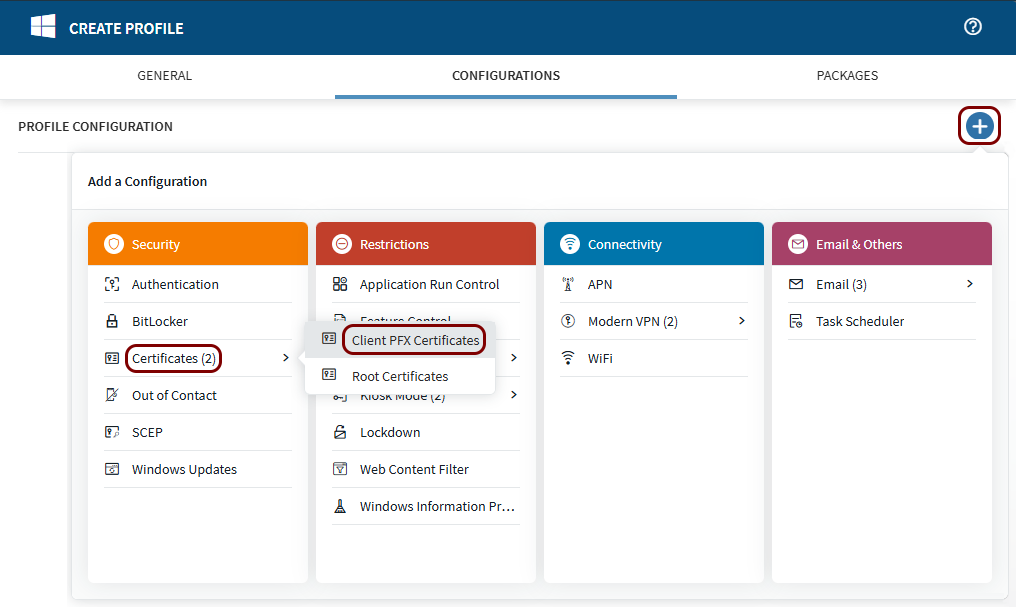
In the CONFIGURATIONS tab, click on the + button in
the top-right corner. Then, select the Certificates option and then the Client PFX
Certificates option.
-
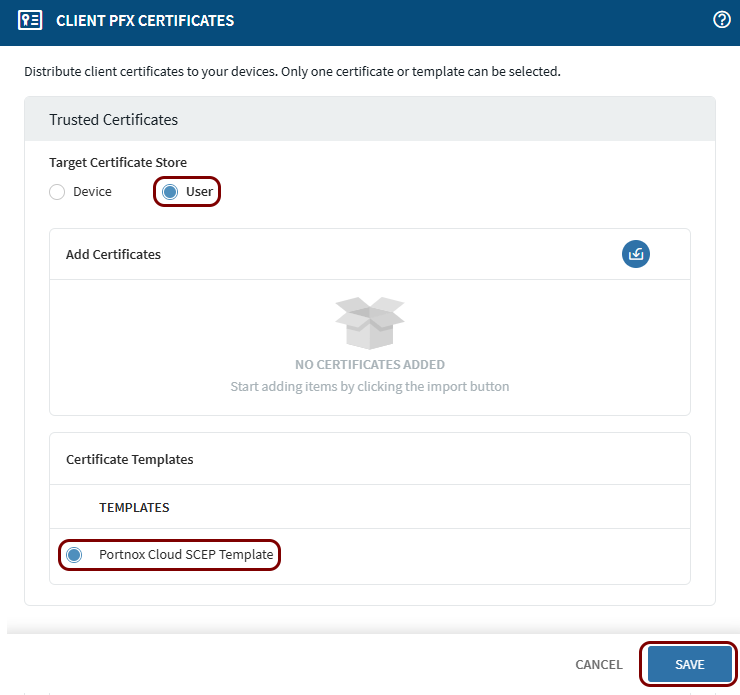
In the CLIENT PFX CERTIFICATES window, in the Target Certificate Store
section, select the User option, and in the Certificate Templates
section, activate the radio button that represents the SCEP template that you created earlier. Then, click on the Save button.
-
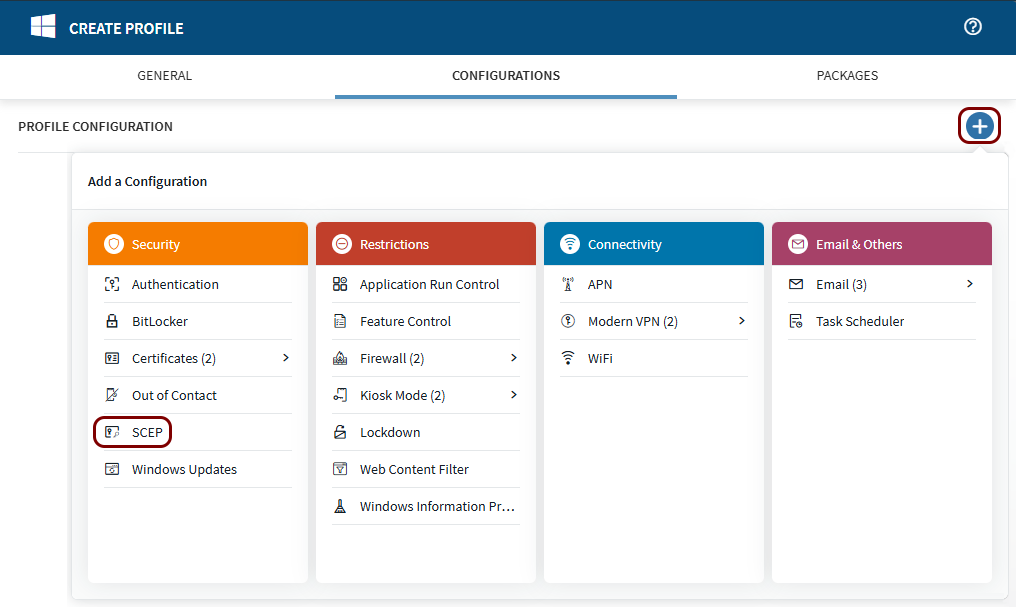
In the CONFIGURATIONS tab, click on the + button in
the top-right corner. Then, select the SCEP option.
-
In the SCEP window, in the Target Certificate Store section, select the
User option, and in the Certificates section, activate the radio
button that represents the SCEP configuration that you
created earlier. Then, click on the Save button.

-
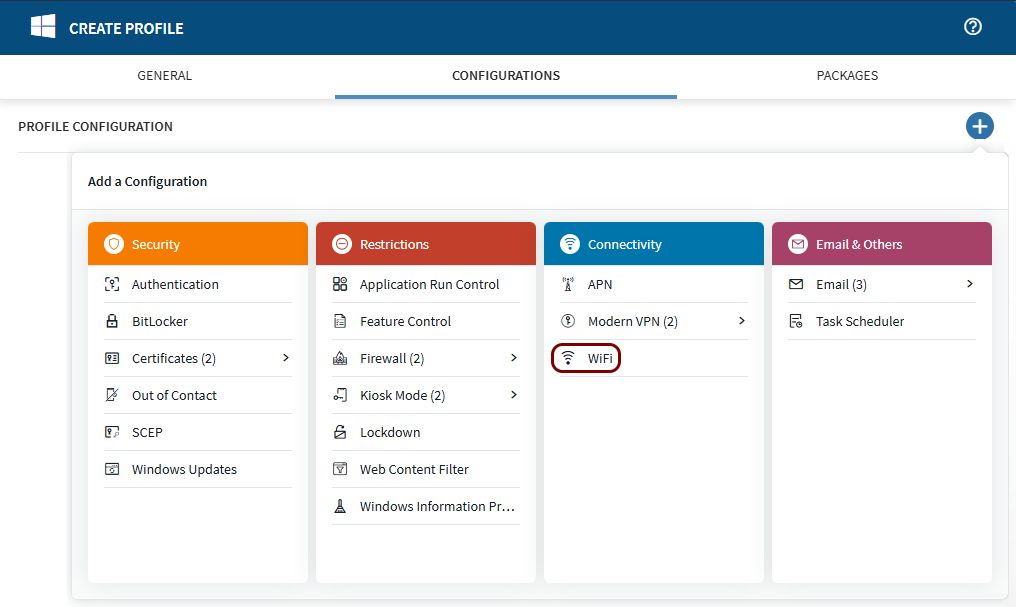
In the CONFIGURATIONS tab, click on the + button in
the top-right corner. Then, select the WiFi option.
-
In the WIFI window:
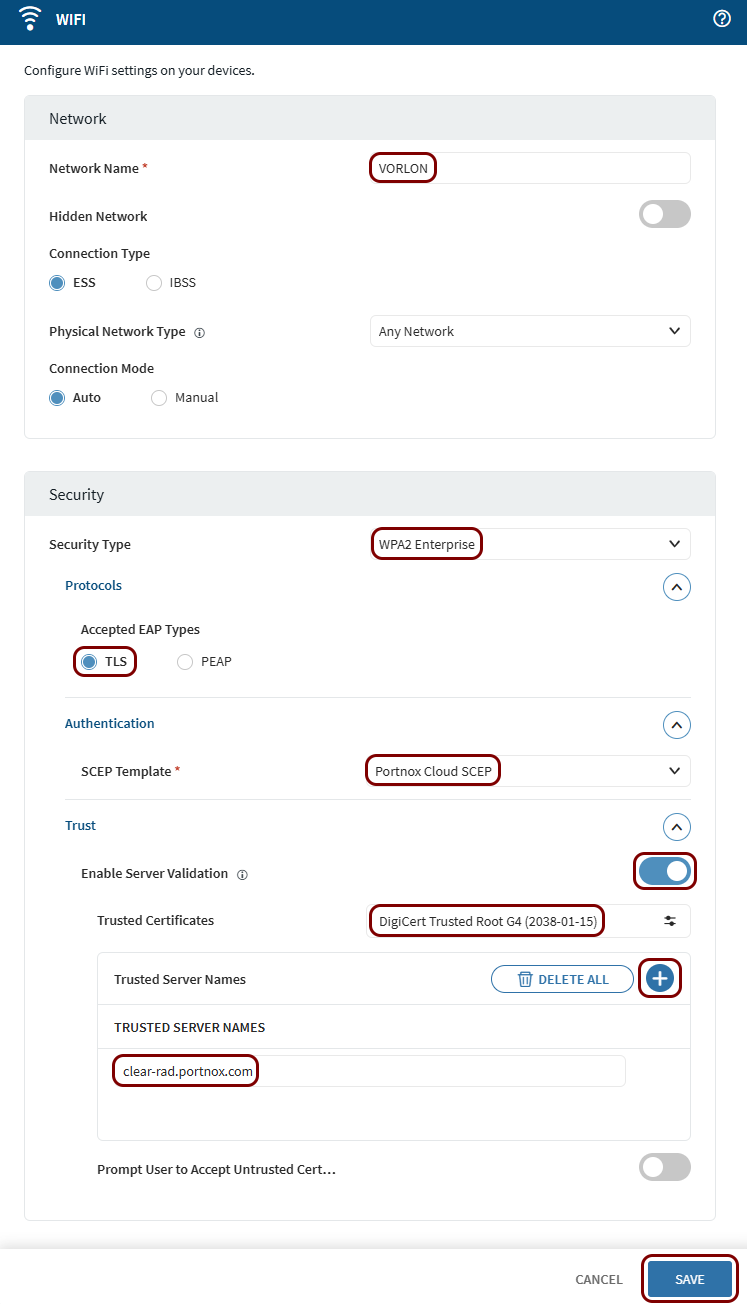
- In the Network Name field, enter the SSID of your network managed by Portnox Cloud.
- Configure other fields in the Network section to match your network configuration.
- In the Security Type field, select the WPA2 Enterprise option.
- Expand the Protocols section.
- In the Accepted EAP Types section, activate the TLS radio button.
- Expand the Authentication section.
- In the SCEP Template field, select the SCEP template that you just configured.
- Expand the Trust section.
- Activate the Enable Server Validation switch.
- In the Trusted Certificates field, select DigiCert Trusted Root G4 (the root CA certificate that you uploaded earlier).
- In the Trusted Server Names section, click on the + icon.
- In the TRUSTED SERVER NAMES section, in the text field, type: clear-rad.portnox.com.
- Click on the Save button to save the Wi-Fi profile.
Result: You created a user profile for Portnox Cloud and Windows devices.
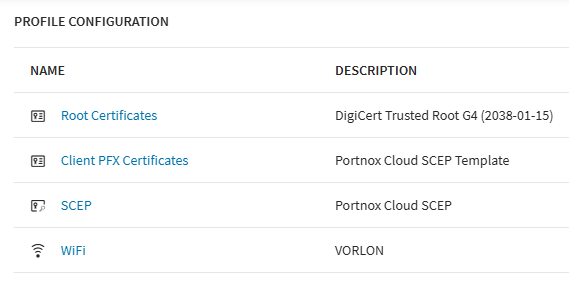
After you created your profile, you can use your regular SOTI MobiControl procedures to push it to managed devices immediately and see if it works correctly. For information on managing devices, pushing profiles, and troubleshooting, consult the SOTI MobiControl documentation.