
Onboard a macOS device through self-onboarding
In this topic, you will learn how to onboard using the self-onboarding portal, a macOS computer, and a wired or wireless network managed by Portnox™ Cloud.
Authenticate with the self-onboarding portal
In this section, you will learn how to authenticate with the self-onboarding portal using your corporate identity.
-
Click on one of the available buttons representing authentication repositories. Then, complete the login process as
required by your authentication repository.
 Note:The buttons available on this page will depend on the authentication repositories integrated with your Portnox Cloud. It is very likely that your organization will only use one of them. The Corporate email option is available only if you configured the self-onboarding portal to allow end-users to use and create Portnox accounts using the self-onboarding portal.
Get and install the profile for Wi-Fi
In this section, you will learn how to use the self-onboarding portal to download the profile and install the profile on your macOS machine. This profile contains your certificate (if applicable) and the Wi-Fi network configuration.
-
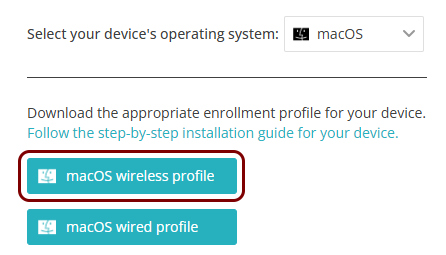
Click on the macOS wireless profile button.
-
Install the downloaded configuration profile.
-
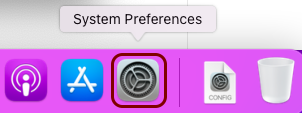
Open the macOS System Preferences application.
-
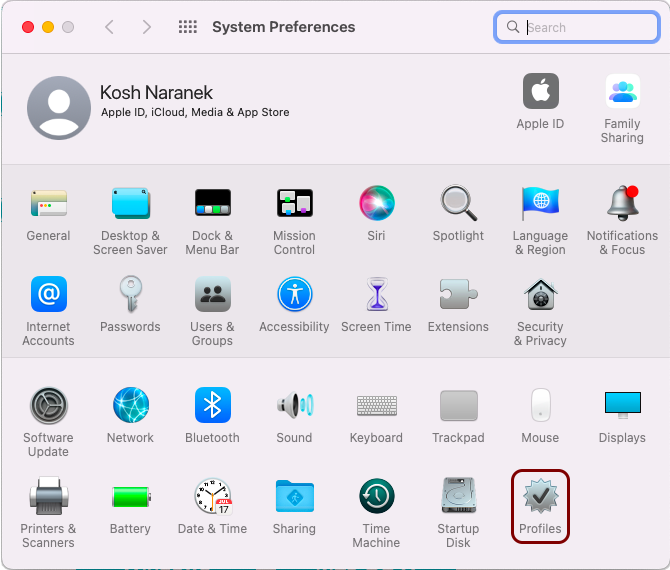
In the System Preferences window, click on the Profiles
icon.
-
In the Profiles window, click on the Install button.
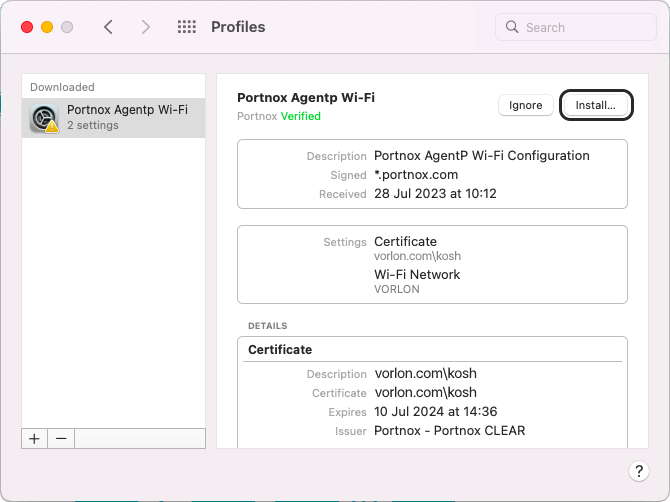
macOS configures the network settings for the Wi-Fi network configured in your Portnox Cloud group.
-
Open the macOS System Preferences application.
-
In the status menu bar, click on the Wi-Fi icon to open the list of available Wi-Fi networks, and select the
network configured in previous steps.
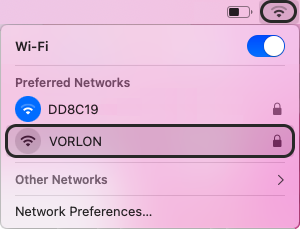
- Optional:
If your group is configured for
credential-based authentication, macOS shows a pop-up asking you to enter credentials. Enter your
credentials, and click on the OK button.
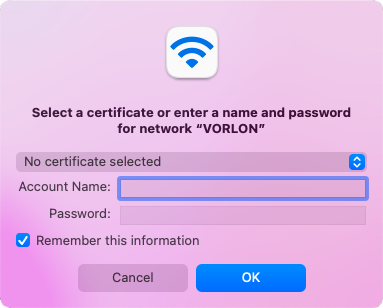
You can also enter your identity in the down-level logon name format: domain\user, for example, vorlon.com\kosh.
If your group is configured for certificate-based authentication, the pop-up is not displayed because it is not necessary.
Get and install the profile for Ethernet
In this section, you will learn how to use the self-onboarding portal to download the profile and install the profile on your macOS machine. This profile contains your certificate (if applicable) and the Ethernet (wired) network configuration.
-
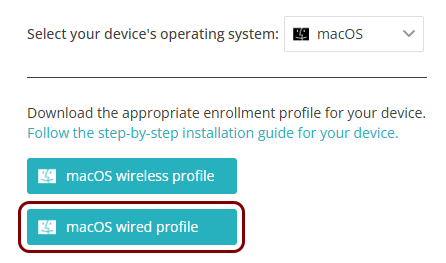
Click on the macOS wired profile button.
-
Install the downloaded configuration profile.
-
Open the macOS System Preferences application.
-
In the System Preferences window, click on the Profiles
icon.
-
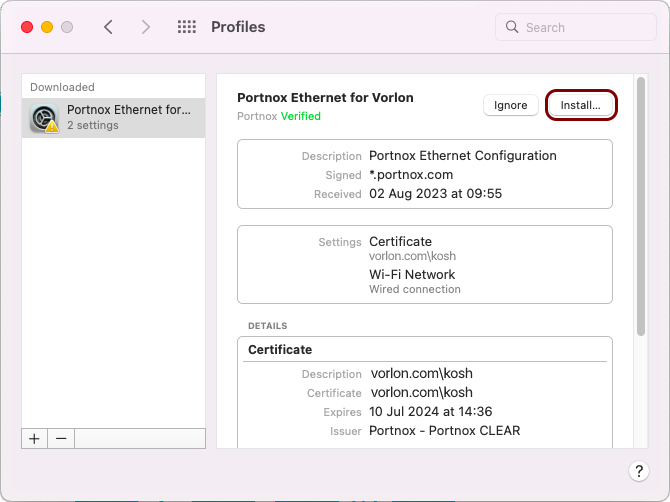
In the Profiles window, click on the Install button.
-
When asked for a password, leave the Password field empty, and click on the
Install button.
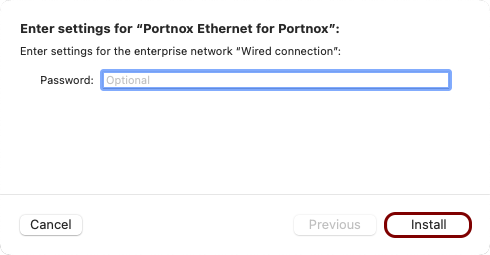
macOS configures the network settings for the wired network configured in your Portnox Cloud group.
-
Open the macOS System Preferences application.
- Optional:
If your group is configured for
credential-based authentication, when you connect the Ethernet cable, macOS shows a pop-up asking you to
enter credentials. Enter your credentials, and click on the OK button.
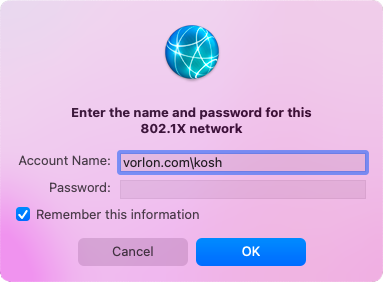
You can also enter your identity in the down-level logon name format: domain\user, for example, vorlon.com\kosh.
If your group is configured for certificate-based authentication, the pop-up is not displayed because it is not necessary.
Reissue a certificate before it expires
In this section, you will learn how to issue a new certificate if your current certificate is about to expire, and what steps you need to do after you reissue the certificate to remain connected to the network.
When you reissue the certificate, the old certificate is revoked, which means it becomes invalid even if it has not yet expired. If you just reissue the certificate but you do not download and install the profile, you will lose access to the network before the certificate expires.
-
Click on the Reissue certificate button.
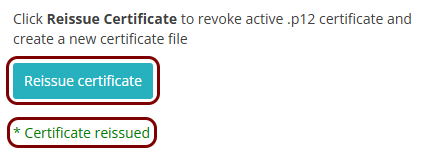
When the process finishes, you will see the information: * Certificate reissued.
Optional: Get and import the certificate only
In this section, you will learn how to download and install the profile that only contains the certificate issued by Portnox Cloud. You can use this profile instead of the Wi-Fi/Ethernet profile if you only use Portnox Zero Trust Network Access (ZTNA) and you don’t need to configure the network.
-
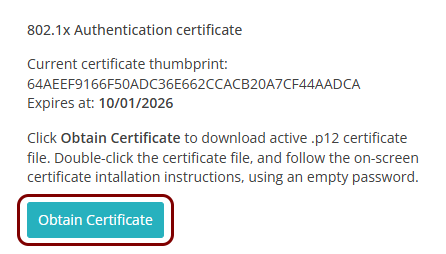
Click on the Obtain Certificate button.
-
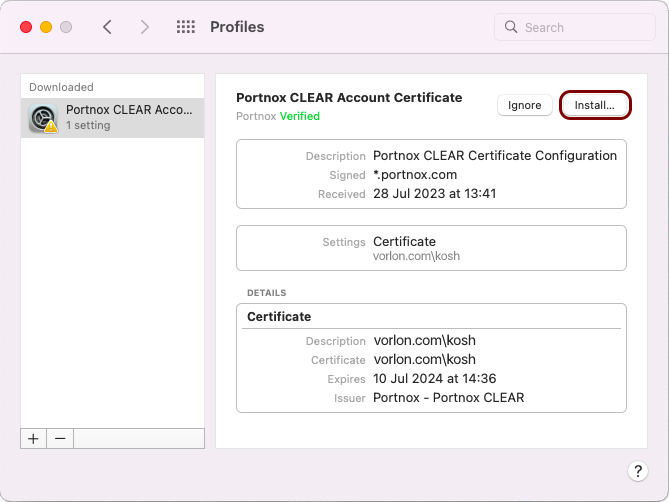
Install the downloaded certificate configuration profile.
-
Open the macOS System Preferences application.
-
In the System Preferences window, click on the Profiles
icon.
-
In the Profiles window, click on the Install button.
-
Open the macOS System Preferences application.