
Integrate Google Workspace with Zero Trust Network Access
In this topic, you will find general instructions on how to integrate Google Workspace with Portnox™ Zero Trust Network Access.
You can use this configuration, for example, if you use Entra ID for user management, and you want your users to access Google Workspace applications. Then, your users logging in to Google applications (such as Gmail, Google Docs, and more) will be authenticated using Zero Trust Network Access certificates and Entra ID credentials, not their Google passwords.
Create a Portnox Cloud application configuration
In this step, you will create a configuration in Portnox Cloud that will contain all the information necessary to integrate with Google Workspace as an application.
-
In the Cloud portal top menu, click on the Zero Trust Resources option.

-
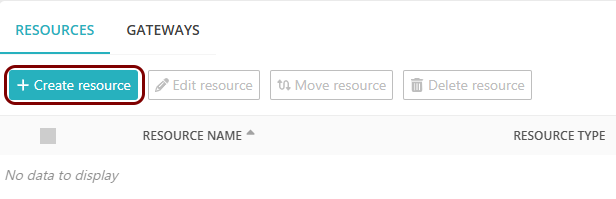
On the Resources screen, click on the Create resource button.
-
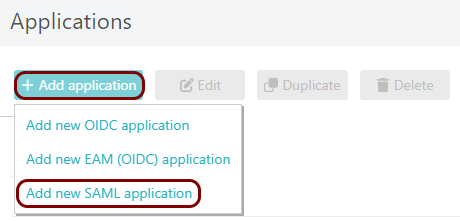
In the Authentication protocol section, select the SAML
option.
-
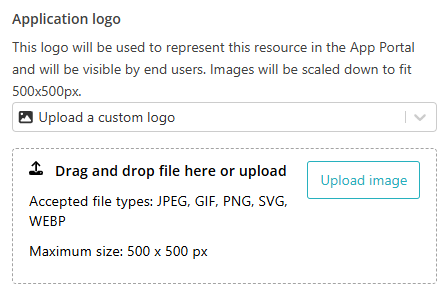
In the Application logo section, select one of the logos from the list, or select
the Upload a custom logo option and then click on the Upload
image button to upload a logo for the application.
The logo is used in the Secure Access Portal.
-
In the Authentication protocol section, select the SAML
option.
-
In the Resource details section, enter a Resource
name and optionally a Description.
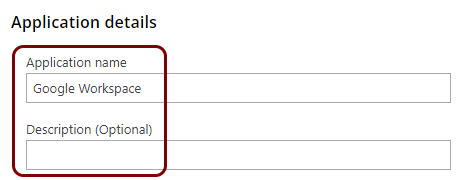
In this example, we used the name Google Workspace for the new application configuration but you can use any name you like.
Open your Google Workspace SSO with third-party IdP settings
In this section, you will access your Google Workspace SSO settings page for third-party identity providers and create a new third-party SSO profile.
-
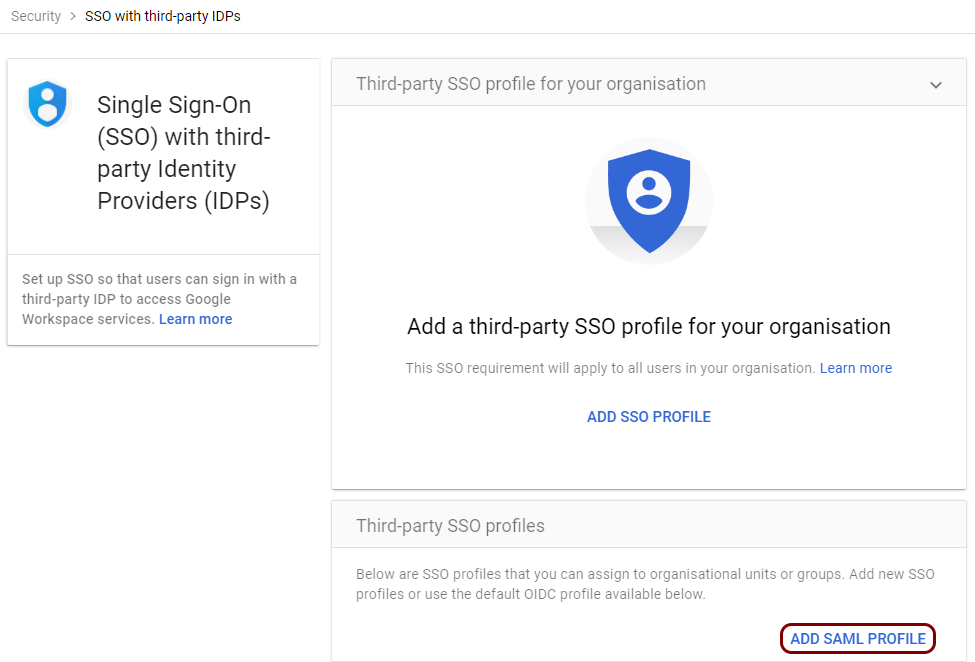
In the Third-party SSO profiles section, click on the ADD SAML
PROFILE link.
-
In the SAML SSO profile pane, in the SSO profile name field, enter a
name for this profile.
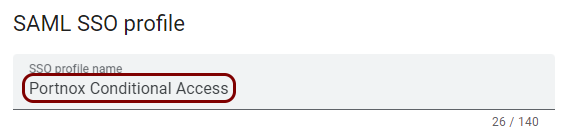
In this example, we used the name Portnox Conditional Access but you can use any name you like.
Copy configuration values from the Portnox tab to the Google Workspace tab
In this section, you will copy the values displayed by Portnox Cloud and paste them in the relevant fields in the Google Workspace new SAML SSO profile pane.
-
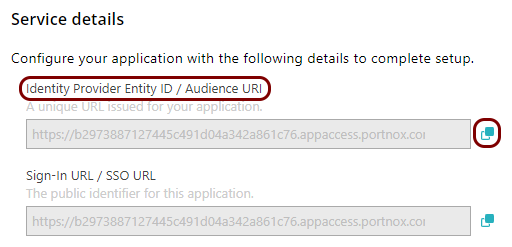
In the Portnox tab, in the Service details section, click on the ⧉ icon next to the Identity Provider Entity ID / Audience
URI field to copy the value.
-
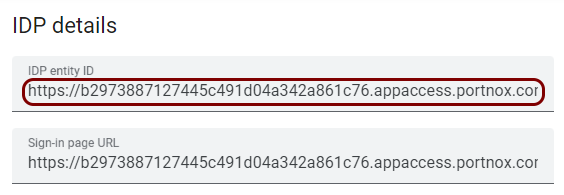
In the Google Workspace tab, click on the empty field under the IDP entity ID label and
paste the value copied from Portnox Cloud.
-
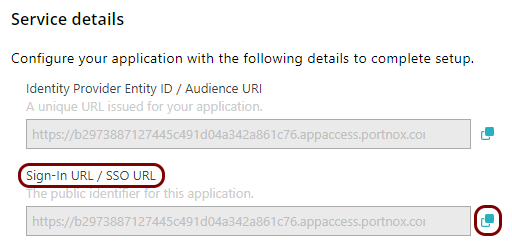
In the Portnox tab, in the Service details section, click on the ⧉ icon next to the Sign-In URL / SSO URL field to copy the
value.
-
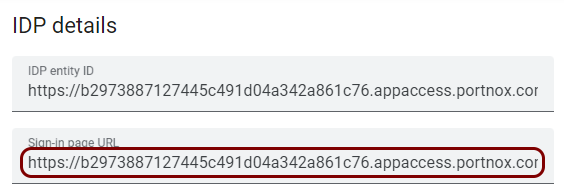
In the Google Workspace tab, click on the empty field under the Sign-in page URL label and
paste the value copied from Portnox Cloud.
-
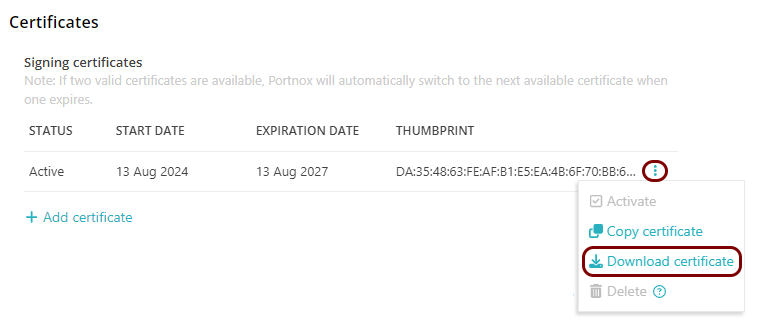
In the Portnox tab, in the section, click on the ⋮ icon next to the
Active certificate and select the Download certificate option to
download the certificate to the local drive.
-
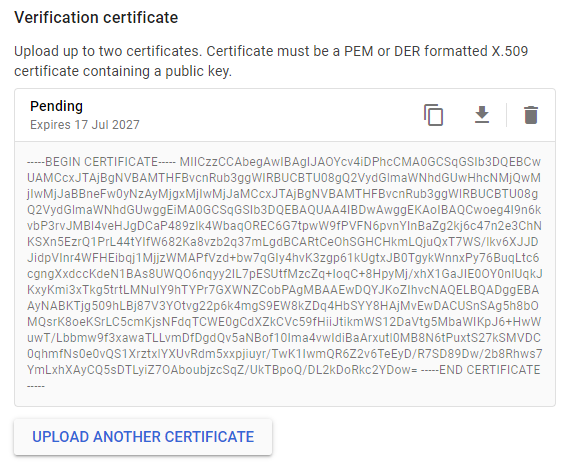
In the Google Workspace tab, click on the UPLOAD CERTIFICATE link and upload the downloaded
certificate file.
-
Click on the SAVE button to save the profile and display values that you will need to copy
to the Portnox tab.
Copy configuration values from the Google Workspace tab to the Portnox tab
In this section, you will copy the values displayed in your Google Workspace SAML SSO profile section, and paste them in the relevant fields in Portnox Cloud.
-
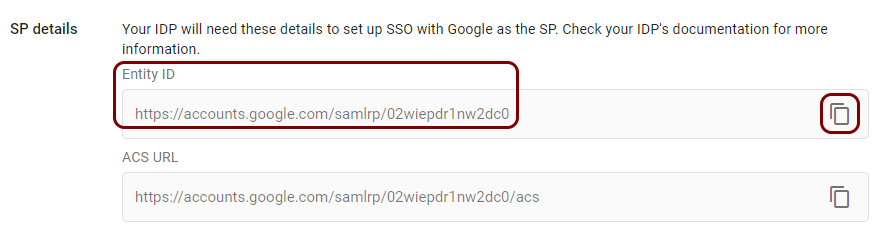
In the Google Workspace tab, in the section, click on the ⧉ icon in the Entity
ID field to copy the value to the clipboard.
-
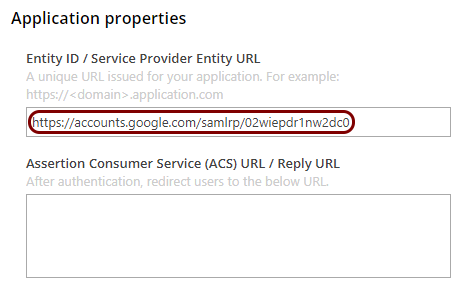
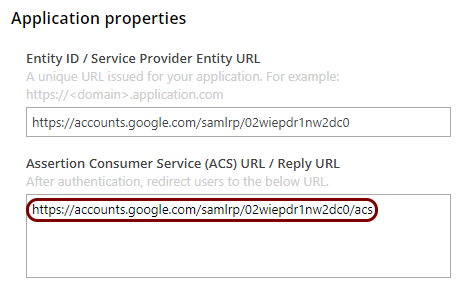
In the Portnox tab, in the Resource properties section, click on the empty field under the
Entity ID / Service Provider Entity URL heading and paste the value copied from Google
Workspace.
-
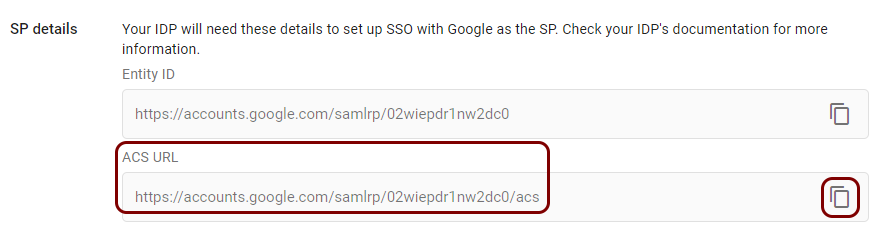
In the Google Workspace tab, in the section, click on the ⧉ icon in the ACS
URL field to copy the value to the clipboard.
-
In the Portnox tab, in the Resource properties section, click on the empty field under the
Assertion Consumer Service (ACS) URL / Reply URL heading and paste the value copied from
Google Workspace.
Finalize the configuration
In this section, you will finalize the configuration in Portnox Cloud and Google Workspace.
-
Finalize the configuration in the Portnox tab.
-
Click on the OPTIONAL SETTINGS link to show
additional fields, and then in the Application Login URI field, enter the
following value: https://accounts.google.com/ServiceLogin.
Note:This step is required if you want to show this application in the ZTNA Secure Access Portal.

-
Scroll all the way down to the end of the page, and then click on the Add resource
button.
-
Click on the OPTIONAL SETTINGS link to show
additional fields, and then in the Application Login URI field, enter the
following value: https://accounts.google.com/ServiceLogin.
-
Finalize the configuration in the Google Workspace tab.
-
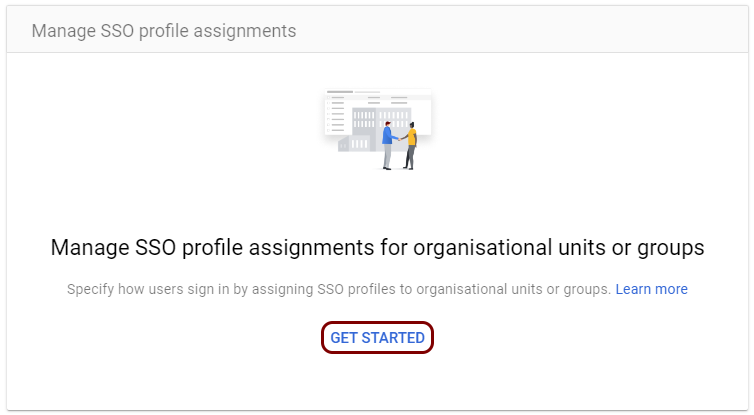
In the Manage SSO profile assignments section, click on the GET
STARTED link.
-
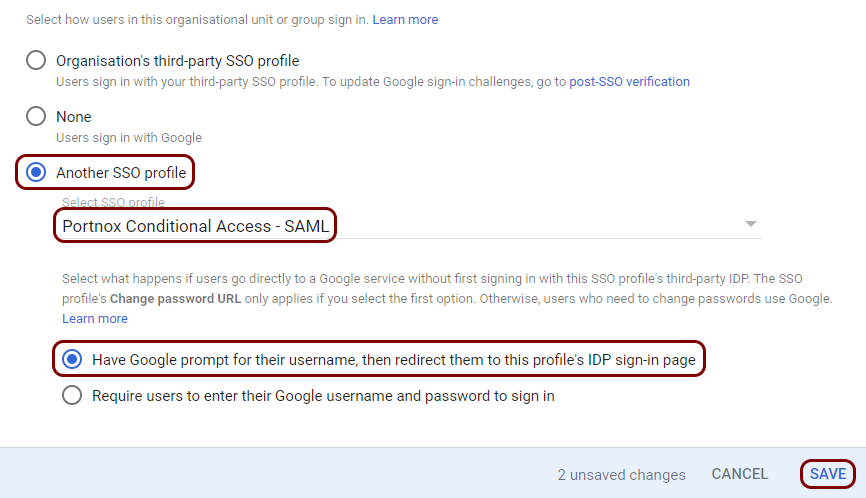
On the left-hand side, select the groups or organizational units that you want to use Zero Trust Network
Access to log in, and then on the right-hand side, select the Another SSO profile
option, in the Select SSO profile field select the profile you just added, and then
activate the following option: Have Google prompt for their username, then redirect them to this
profile’s IDP sign-in page. Then, click on the SAVE button.
-
In the Manage SSO profile assignments section, click on the GET
STARTED link.
Result: You have configured Google Workspace to be accessible using Portnox Zero Trust Network Access for Applications.
Note the following troubleshooting information:
-
Google Workspace does not enforce third-party IdP for users with Admin privileges, even if they belong to a group or organizational unit configured to use a third-party IdP. These users are always asked for their Google passwords.
-
When creating a new user, we recommend that you assign that user to a temporary organizational unit or group with no IdP requirement, so that the user can activate their account and create a Google password. After the user activates their account, you can assign them to the third-party IdP login unit/group. Otherwise, this may cause problems with the first login.