
Integrate Splunk Cloud with Zero Trust Network Access
In this topic, you will find general instructions on how to integrate Splunk Cloud with Portnox™ Zero Trust Network Access.
Create a Portnox Cloud application configuration
In this step, you will create a configuration in Portnox Cloud that will contain all the information necessary to integrate with Splunk Cloud.
-
In the Cloud portal top menu, click on the Zero Trust Resources option.

-
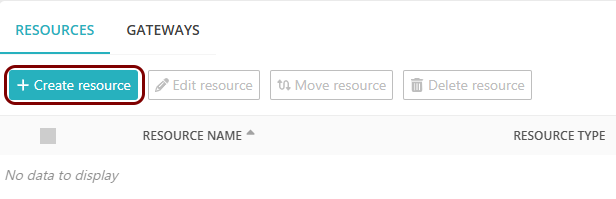
On the Resources screen, click on the Create resource button.
-
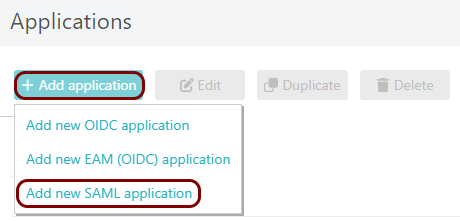
In the Authentication protocol section, select the SAML
option.
-
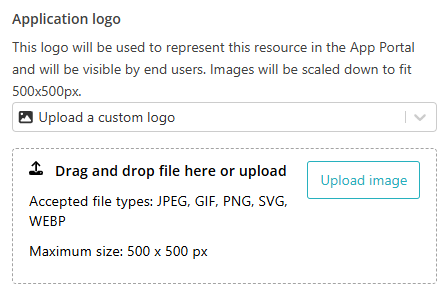
In the Application logo section, select one of the logos from the list, or select
the Upload a custom logo option and then click on the Upload
image button to upload a logo for the application.
The logo is used in the Secure Access Portal.
-
In the Authentication protocol section, select the SAML
option.
-
In the Resource details section, enter a Resource
name and optionally a Description.
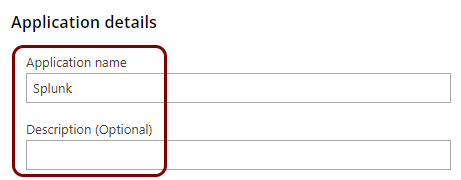
In this example, we used the name Splunk for the new application configuration but you can use any name you like.
Open your Splunk Cloud SAML configuration
In this section, you will access your Splunk Cloud administrative interface and find the SAML configuration page.
-
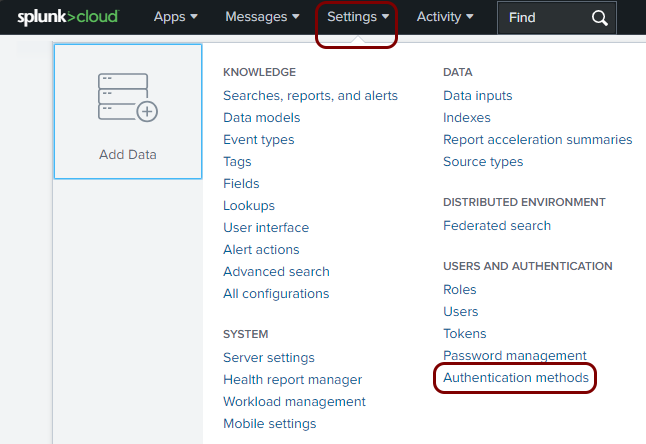
In the top menu, click on the Settings option to open the menu, and then in the
USERS AND AUTHENTICATION section, select the Authentication
methods option.
-
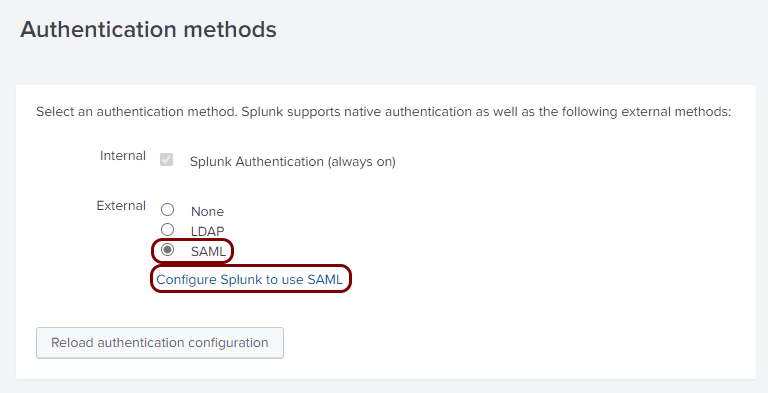
In the Authentication methods pane, in the External section, select
the SAML option, and then click on the Configure Splunk to use SAML
link.
Export metadata from the Portnox tab and upload it in the Splunk tab
In this section, you will export the metadata from Portnox Cloud into a file and upload that file in the Splunk Cloud SAML configuration section.
-
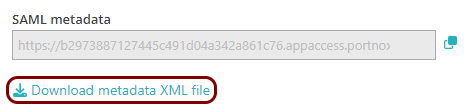
In the Portnox tab, in the SAML metadata section, click on the Download metadata
XML file link to download the XML file and save it to your local drive.
-
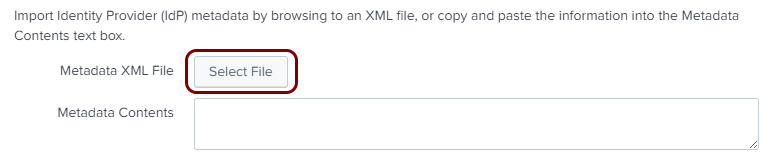
In the Splunk tab, click on the Select File button next to the Metadata XML
file heading, and then upload the XML file downloaded from Portnox Cloud.
-
In the Splunk tab, in the Entity ID field, enter
https://your_tenant.splunkcloud.com/, substitutingyour_tenantwith your Splunk Cloud tenant name.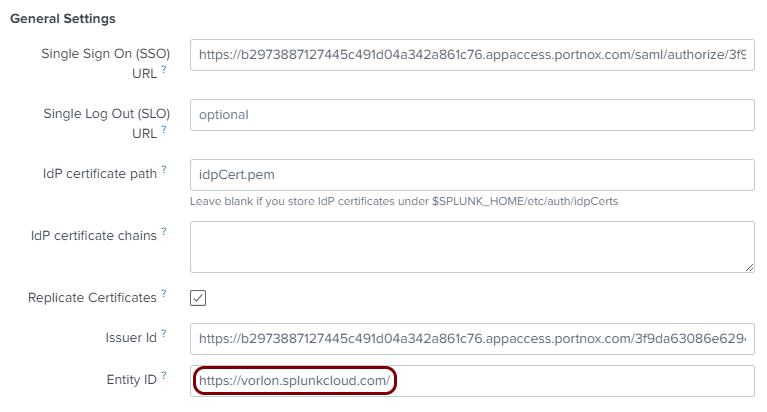
Enter configuration values in the Portnox tab
In this section, you will enter configuration values in the relevant fields in Portnox Cloud.
-
In the Portnox tab, in the Resource properties section, click on the empty field under the
Entity ID / Service Provider Entity URL heading and enter the following value:
https://your_tenant.splunkcloud.com/, substituting4with your Splunk Cloud tenant name.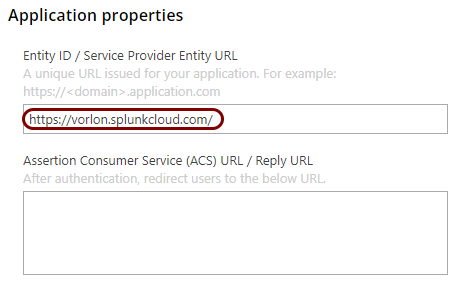
-
In the Portnox tab, in the Resource properties section, click on the empty field under the
Assertion Consumer Service (ACS) URL / Reply URL heading and enter the following value:
https://your_tenant.splunkcloud.com/saml/acs, substitutingyour_tenantwith your Splunk Cloud tenant name.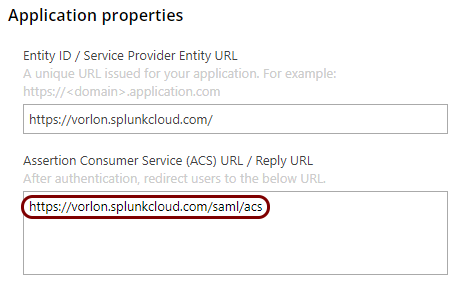
Finalize the configuration
In this section, you will finalize the configuration in Portnox Cloud and Splunk Cloud.
-
Finalize the configuration in the Portnox tab.
-
Click on the OPTIONAL SETTINGS link to show
additional fields, and then in the Application Login URI field, enter the
following value:
https://your_tenant.splunkcloud.com.Note:This step is required if you want to show this application in the ZTNA Secure Access Portal.
-
Scroll all the way down to the end of the page, and then click on the Add resource
button.
-
Click on the OPTIONAL SETTINGS link to show
additional fields, and then in the Application Login URI field, enter the
following value:
-
Finalize the SAML configuration in the Splunk tab.
-
In the Name Id Format field, select the Email Address
option.

-
In the SSO Binding section, click on the HTTP Post
button.

-
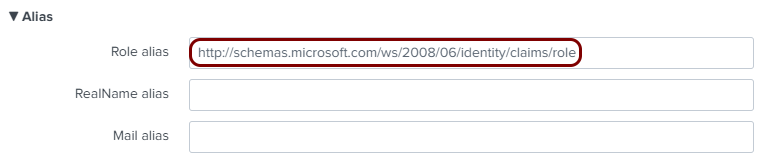
In the Alias section, in the Role alias field, paste the
following value: http://schemas.microsoft.com/ws/2008/06/identity/claims/role.
-
Click on the Save button.
-
In the Name Id Format field, select the Email Address
option.
-
Configure your identity provider to send group information in the role field.
For example:
-
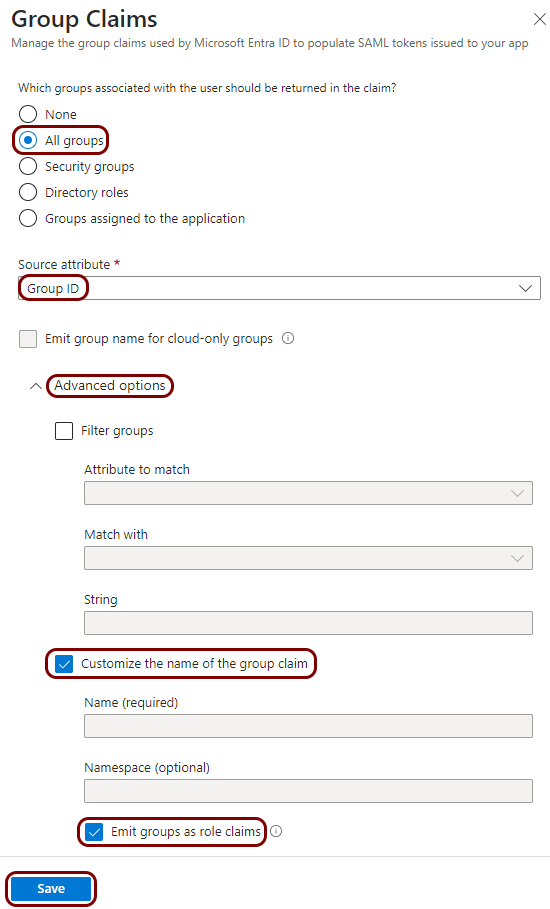
If you use Entra ID: In the Attributes & Claims pane, click on the Add a group claim button. In the Group Claims pane, select All groups, set Source attribute to Group ID, in the Advanced options section, activate the Customize the name of the group claim checkbox, activate the Emit groups as role claims checkbox, and then click on the Save button.
-
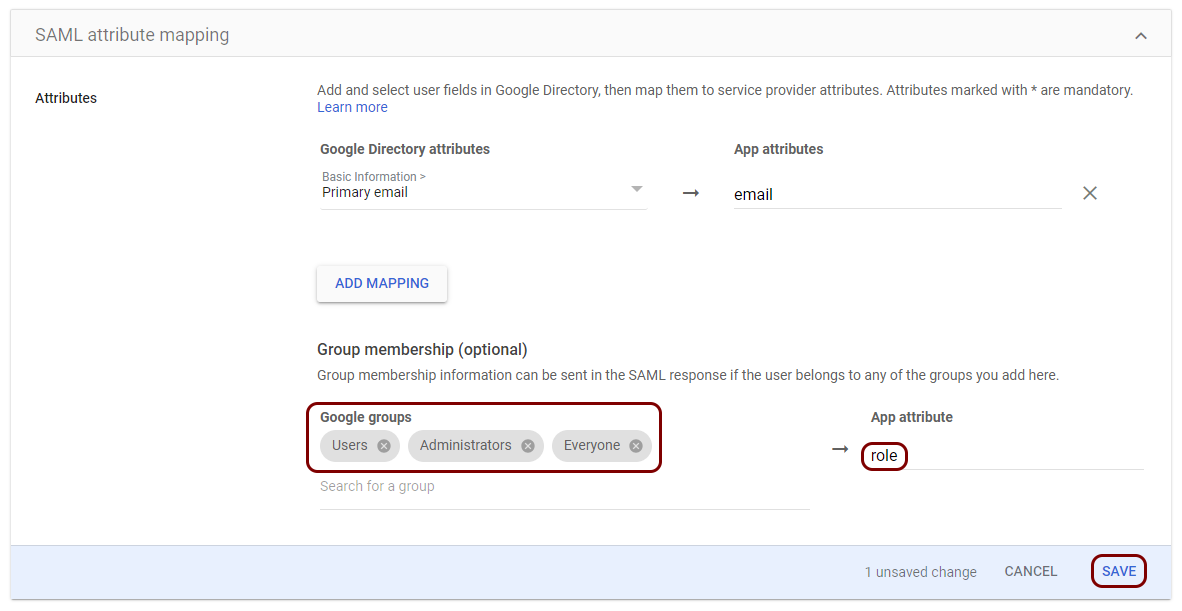
If you use Google Workspace: In the SAML attribute mapping pane, add all Google groups that you want to have access to Splunk Cloud, and in the App attribute field, enter role. Then, click on the Save button.
-
-
Map SAML groups in the Splunk tab.
-
In the SAML Groups pane, click on the New Group button.

-
In the Create New SAML Group window, in the Group Name field,
enter the group identifier as used in your identity provider, select suitable Splunk
Roles for this group, and then click on the Save button.
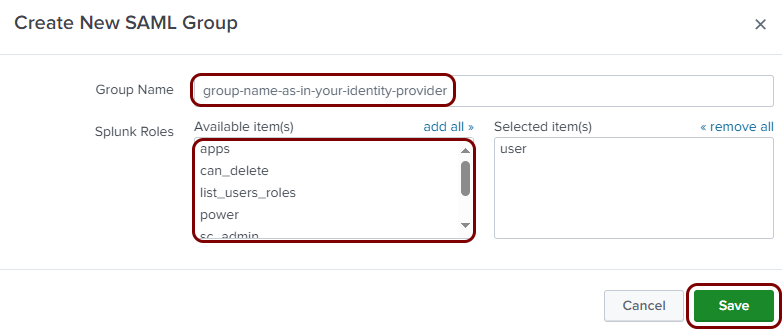 Note:For example, in Entra ID, the
group-name-as-in-your-identity-provideris the Object ID displayed on the group screen (in the UUID format, for example, 1b6c91ce-18d9-4211-8052-cc749bd73dd2), and in Google Workspace, it is the username part of the group’s email address (for example, administrators).
-
In the SAML Groups pane, click on the New Group button.
Result: You have configured Splunk Cloud to be accessible using Portnox Zero Trust Network Access.
https://your_tenant.splunkcloud.com/en-US/account/login?loginType=splunk,
where your_tenant is your Splunk Cloud tenant name.