
Configure certificate-based access in Entra ID with Zero Trust Network Access certificates
In this topic, you will find instructions on how to enable and configure certificate-based access (CBA) in Microsoft Entra ID and use Zero Trust Network Access certificates managed by Portnox AgentP for safe and quick Entra ID authentication.
Download the tenant CA certificate from Portnox Cloud
In this section, you will download the Portnox™ Cloud tenant CA certificate from the Cloud portal.
-
In the Cloud portal top menu, click on the Settings option.

-
In the Cloud portal left-hand side menu, click on the option.
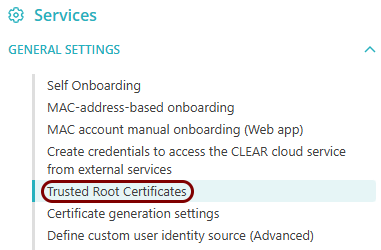
-
In the Trusted Root Certificates section, click on the Download CER
link, then save the downloaded file.
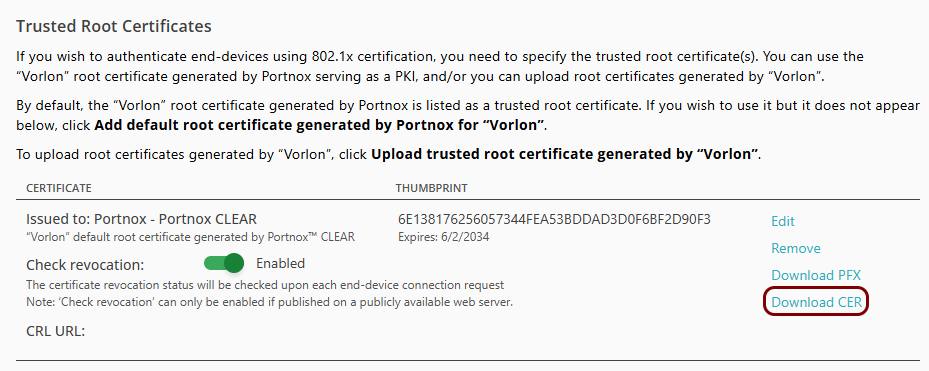
The default name of the file is
Your_tenant_name - Portnox CLEAR.cer, for example,Vorlon - Portnox CLEAR.cer.
Add the downloaded tenant certificate to Entra ID
In this step, you will access your Azure Portal and add the downloaded certificate to your Entra ID configuration as a root certificate authority.
-
In the Azure Portal main menu, click on the Microsoft Entra ID option.
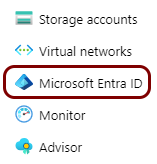
You can access the main menu by clicking on the icon in the top left corner of the Azure Portal.
-
In the left-hand side menu, scroll down to the bottom of the Manage section, and then click
on the Security option.
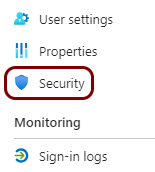
-
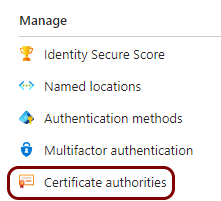
In the left-hand side menu, in the Manage section, click on the Certificate
authorities option.
-
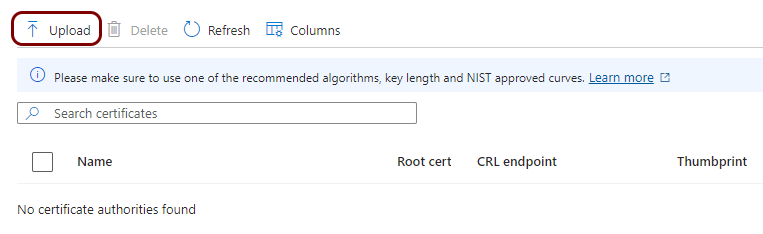
In the Certificate authorities pane, click on the Upload
button.
-
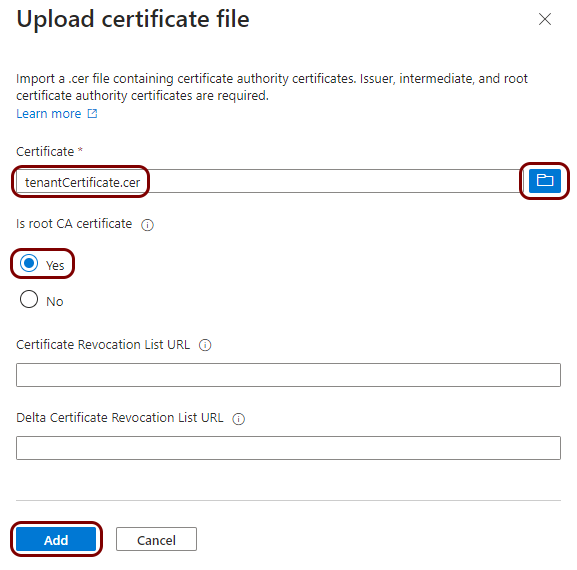
In the Upload certificate file pane, click on the 🗀
icon and select the downloaded tenant certificate file that you converted to the DER binary X.509 format. In the
Is root CA certificate section, select the Yes option, and then
click on the Add button.
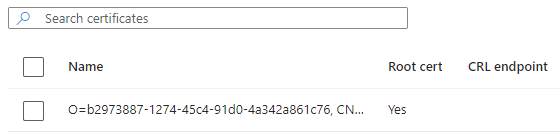
Result: You added the tenant certificate as a certificate authority in Entra ID.
Enable certificate-based authentication in Entra ID
In this step, you will enable the certificate-based authentication functionality in Entra ID, configure it to verify user certificates based on the added certificate authority, and enable this functionality for users.
-
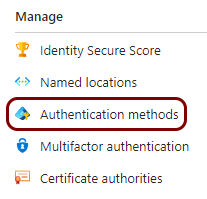
In the left-hand side menu, in the Manage section, click on the Authentication
methods option.
-
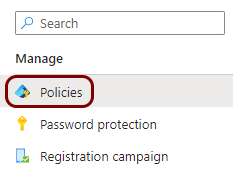
In the left-hand side menu, make sure that the Policies option is selected.
-
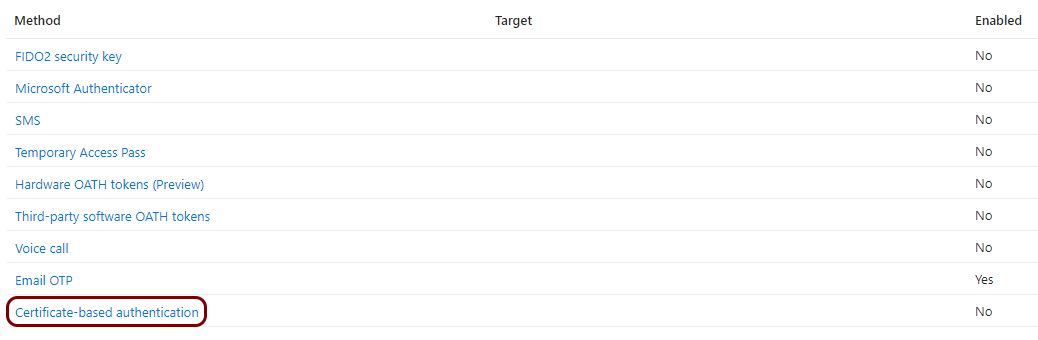
In the Policies pane, click on the Certificate-based authentication
link in the Method column.
-
In the Certificate-based authentication settings pane, in the Enable and
Target tab, activate the Enable switch. Then, in the section below, select
the user groups that will be using certificate-based authentication, and click on the Save
button.
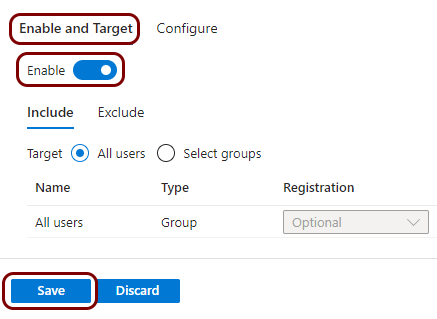 Warning:We recommend to initially test this functionality on a group of users before enabling it for all users. If you configure this functionality incorrectly, users may be unable to log in.
 -
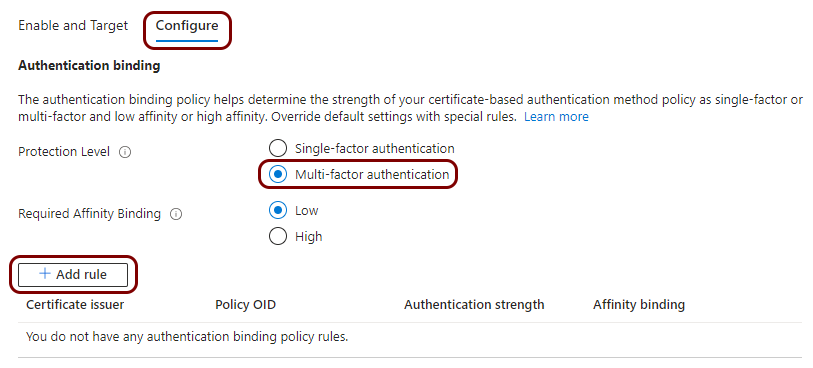
In the Configure tab, in the Protection Level field, select the
Multi-factor authentication option, and then click on the Add rule
button below.
-
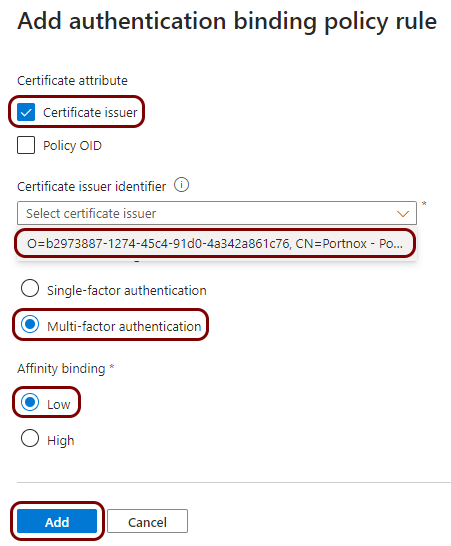
In the Add authentication binding policy rule pane, activate the Certificate
issuer checkbox, and in the Certificate issuer identifier field, select the
identifier of the certificate authority that you added earlier. In the Authentication
strength section, select the Multi-factor authentication option. In the
Affinity binding section, select the Low option. Then, click on
the Add button.
-
In the Certificate-based authentication settings pane, click on the
Save button.

Test the certificate-based authentication
In this section, you will log in to Microsoft 365 as one of the users that you configured for certificate-based authentication (CBA).
-
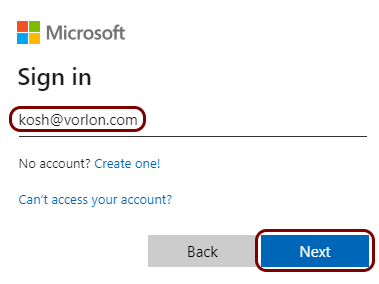
Sign in as the same user that is enrolled in your AgentP and that you configured for certificate-based
authentication.
-
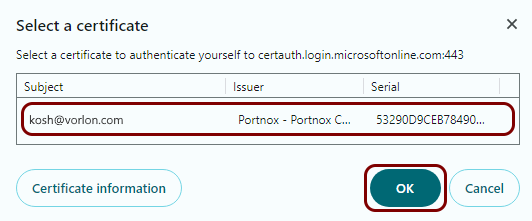
You should see a certificate selection window. Select the certificate for the user, and then click on the
OK button.
 Note:Depending on how you configured the priority of authentication methods in Entra ID, you may see a prompt to enter a password. If so, click on the Other ways to sign in link, and then select the Use a certificate or smart card option.
Result: If the test is successful, you will be logged in to Microsoft 365.