
Integrate Logitech Sync with Zero Trust Network Access
In this topic, you will find general instructions on how to integrate Logitech Sync with Portnox™ Zero Trust Network Access.
Modify your identity provider configuration to support Logitech Sync
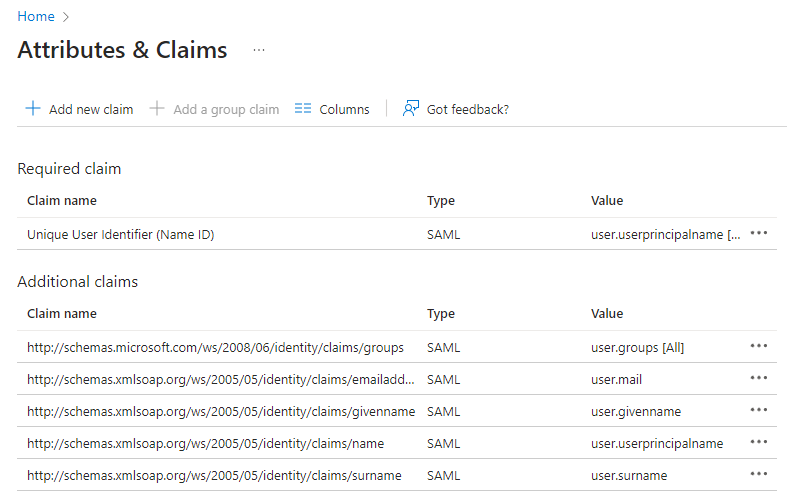
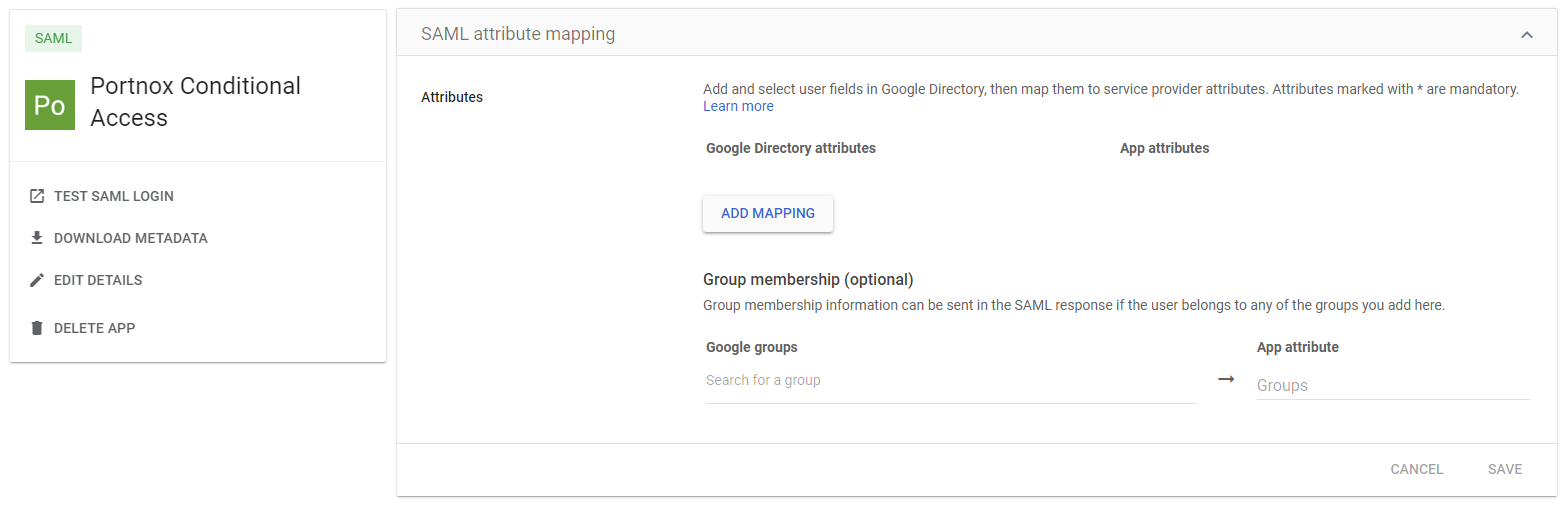
Logitech Sync SAML integration requires your identity provider to send specific attributes/claims. We recommend that you check if your identity provider configuration already includes these attributes/claims. You must change your existing identity provider configuration or create a copy of the identity provider configuration especially for Logitech Sync.
-
If you use Entra ID, open your Zero Trust Network Access application configuration and do the following
steps.
-
Open the Attributes & Claims pane ().
-
Open the Attributes & Claims pane ().
-
If you use Google Workspace, open your configuration and do the following steps.
-
Open the SAML attribute mapping pane (.
-
Open the SAML attribute mapping pane (.
Create a Portnox Cloud application configuration
In this step, you will create a configuration in Portnox Cloud that will contain all the information necessary to integrate with Logitech Sync.
-
In the Cloud portal top menu, click on the Zero Trust Resources option.

-
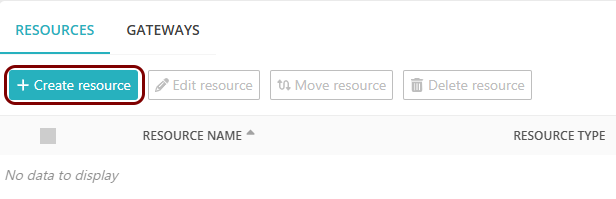
On the Resources screen, click on the Create resource button.
-
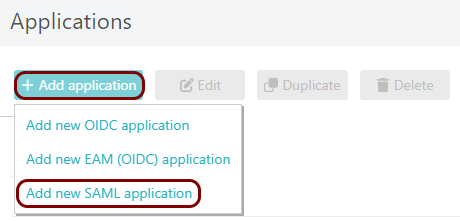
In the Authentication protocol section, select the SAML
option.
-
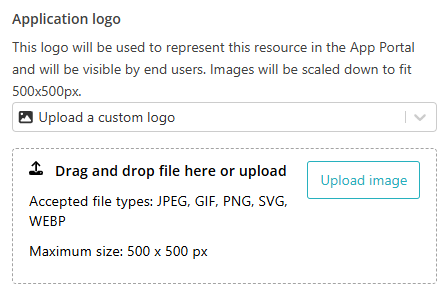
In the Application logo section, select one of the logos from the list, or select
the Upload a custom logo option and then click on the Upload
image button to upload a logo for the application.
The logo is used in the Secure Access Portal.
-
In the Authentication protocol section, select the SAML
option.
-
In the Resource details section, enter a Resource
name and optionally a Description.
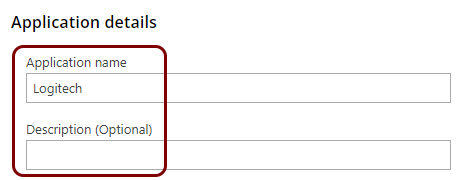
In this example, we used the name Logitech for the new application configuration but you can use any name you like.
Open your Logitech Sync SSO configuration pane
In this section, you will access your Logitech Sync administrative interface and find the SSO configuration pane.
-
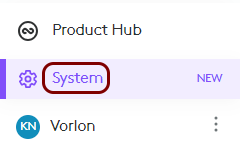
In the bottom-left corner, click on the System menu option.
-
In the top menu, select the Account tab.

-
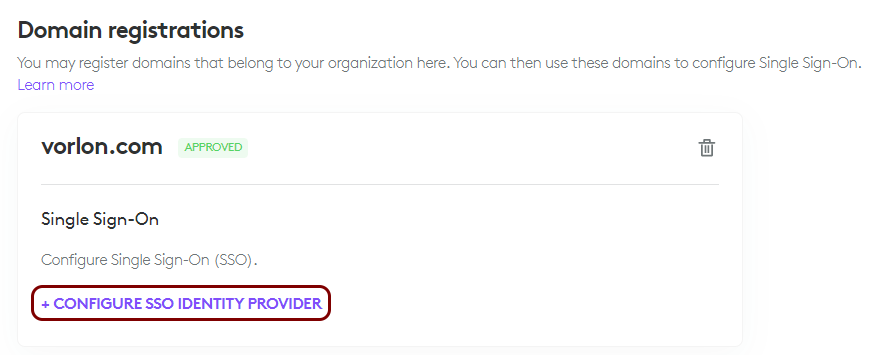
In the Domain registrations section, click on the CONFIGURE SSO IDENTITY
PROVIDER link.
-
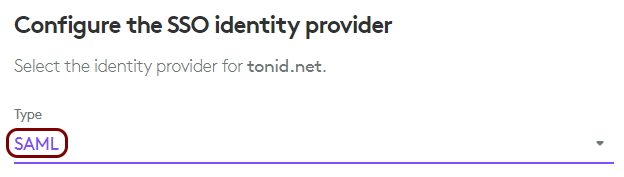
In the Configure the SSO identity provider pane, make sure that the
Type field is set to SAML.
Copy configuration values from the Portnox tab to the Logitech tab
In this section, you will copy the values displayed by Portnox Cloud and paste them in the relevant fields in the Logitech Sync SSO configuration pane.
-
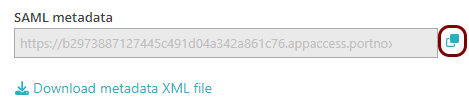
In the Portnox tab, in the SAML metadata section, click on the ⧉ icon next to the text field to copy the value.
-
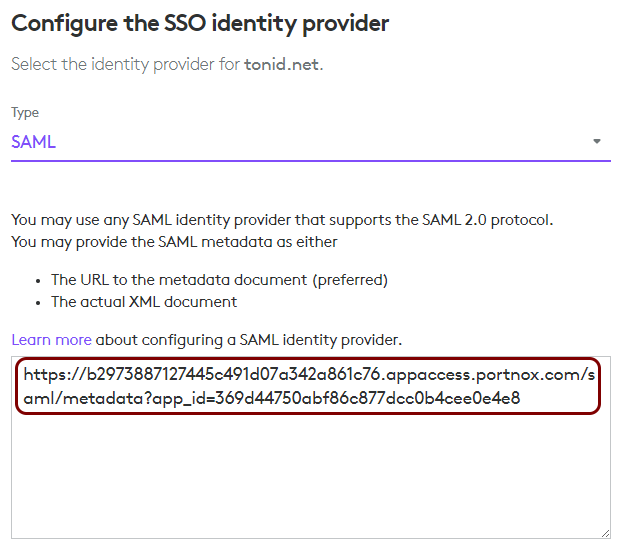
In the Logitech tab, click on the empty field in the Configure the SSO identity provider
pane, and paste the metadata URL copied from Portnox Cloud.
Enter configuration values in the Portnox tab
In this section, you will enter configuration values in the relevant fields in Portnox Cloud.
-
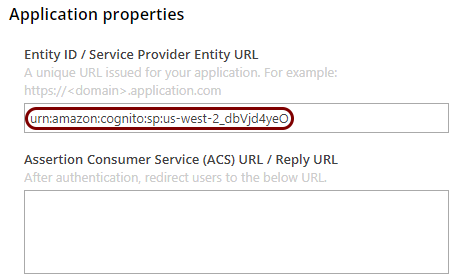
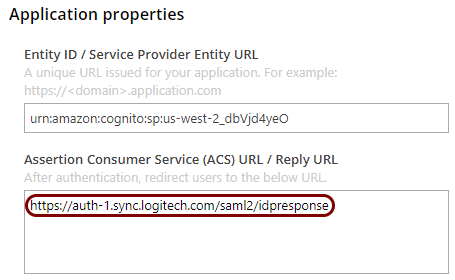
In the Portnox tab, in the Resource properties section, click on the empty field under the
Entity ID / Service Provider Entity URL heading and enter one of the values listed in
Logitech documentation (scroll down to Configuring SAML Identity
Provider) for Entity ID/Audience, for example:
urn:amazon:cognito:sp:us-west-2_dbVjd4yeO.
-
In the Portnox tab, in the Resource properties section, click on the empty field under the
Assertion Consumer Service (ACS) URL / Reply URL heading and enter one of the values
listed in Logitech documentation (scroll down to Configuring SAML Identity
Provider) for Assertion Consumer Service (ACS) URL, for example:
https://auth-1.sync.logitech.com/saml2/idpresponse.
Finalize the configuration
In this section, you will finalize the configuration in Portnox Cloud and Logitech Sync.
-
Finalize the configuration in the Portnox tab.
-
Click on the OPTIONAL SETTINGS link to show
additional fields, and then in the Application Login URI field, enter the
following value: https://sync.logitech.com/login.
Note:This step is required if you want to show this application in the ZTNA Secure Access Portal.

-
Scroll all the way down to the end of the page, and then click on the Add resource
button.
-
Click on the OPTIONAL SETTINGS link to show
additional fields, and then in the Application Login URI field, enter the
following value: https://sync.logitech.com/login.
-
Finalize the SAML configuration in the Logitech tab.
-
Click on the Save button to save your configuration.

-
Click on the Logout and test button to test your configuration.
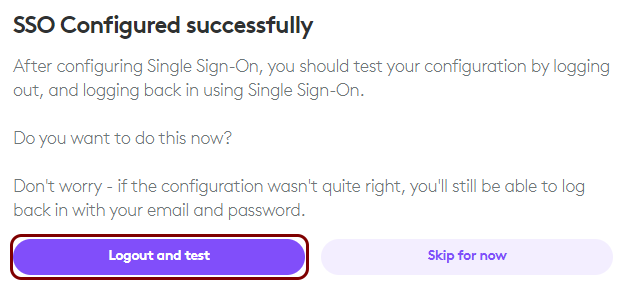 Note:If you cannot log in with SSO, go back to the fist section of this topic and make sure that you configured correct claim/attribute names.
 -
Go back to the SSO configuration pane and activate the Enforce SSO switch.
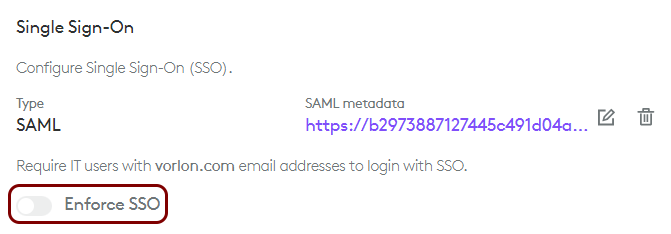 Note:You can only do this if you logged in using SSO.
 -
In the Require Single Sign-On pane, in the Select the 'break glass'
account field, select the account that will be able to log in using their credentials in
addition to SSO. Then, click on the Save button.
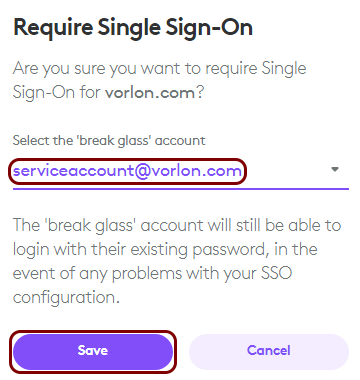 Note:You can use any administrative account here, but for security reasons, we recommend that you create a special service account, which is never used except for such emergency purposes.
-
Click on the Save button to save your configuration.
Result: You have configured Logitech Sync to be accessible using Portnox Zero Trust Network Access.